System values
System values are outputs of blocks in a Miniserver’s program, for example a room temperature, the meter reading of a heat pump or the state of a pump. Whatever you activate here, the gateway reads every 5 minutes and sends to the server. Activated values appear as charts and are available for dashboards, system schematics and alarm rules.
Where the list comes from
Section titled “Where the list comes from”The list of blocks comes from the Miniserver’s project file, which the gateway backs up automatically (see Project files). When the program changes, the list is rebuilt with the next program version. This also applies at a site without a password vault, where the project file is not stored after the evaluation. If the server needs the file again for a new evaluation, for example after an update, it requests it from the gateway; until it arrives the previous list stays in place. If there is no project file yet, the tab says so.
Activating values
Section titled “Activating values”-
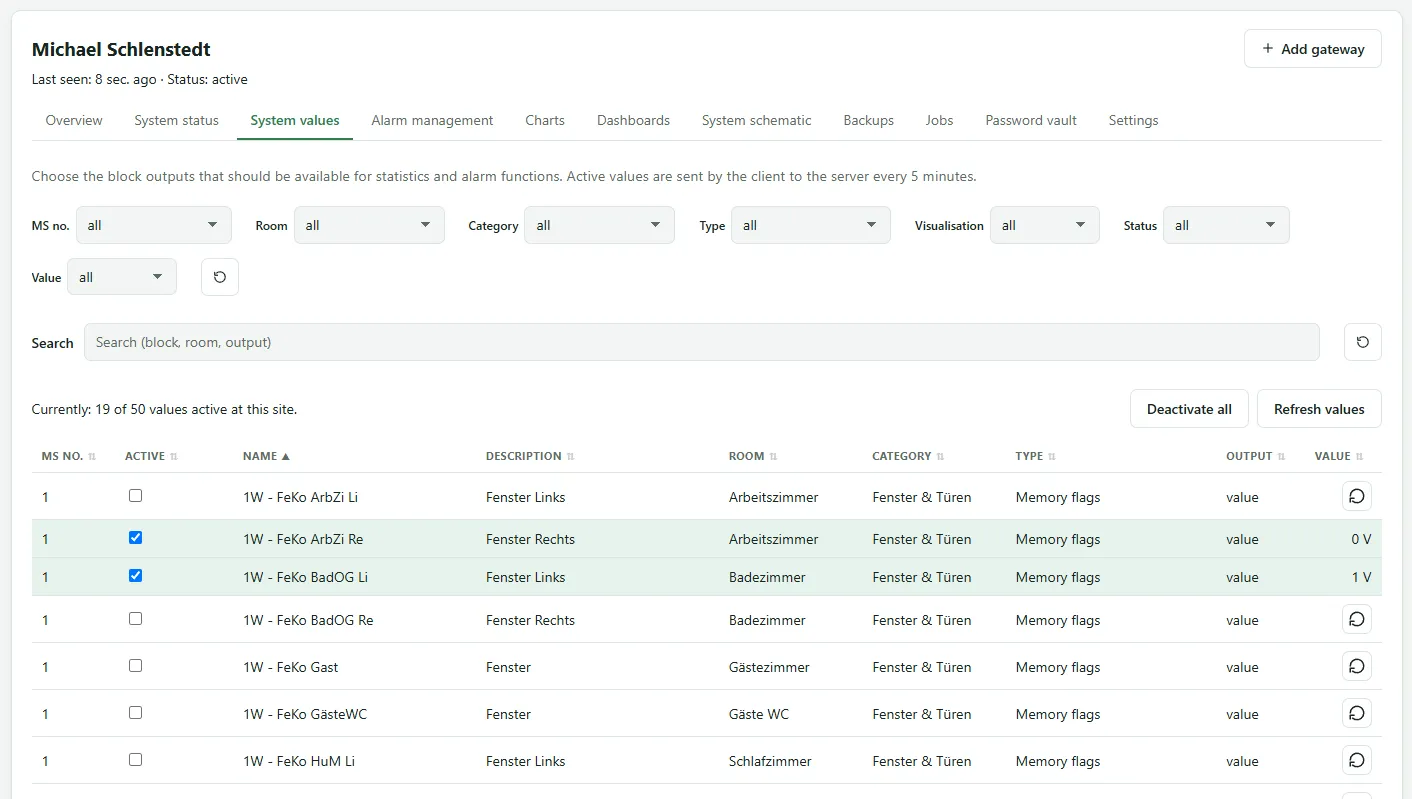
On the site page or on a Miniserver’s device page open the System values tab. The site page shows the values of all Miniservers, recognisable by the MS no. column.
-
Narrow down the list: search by block, room or output, and filter by MS no., Room, Category, Type, Visualisation and Status.
-
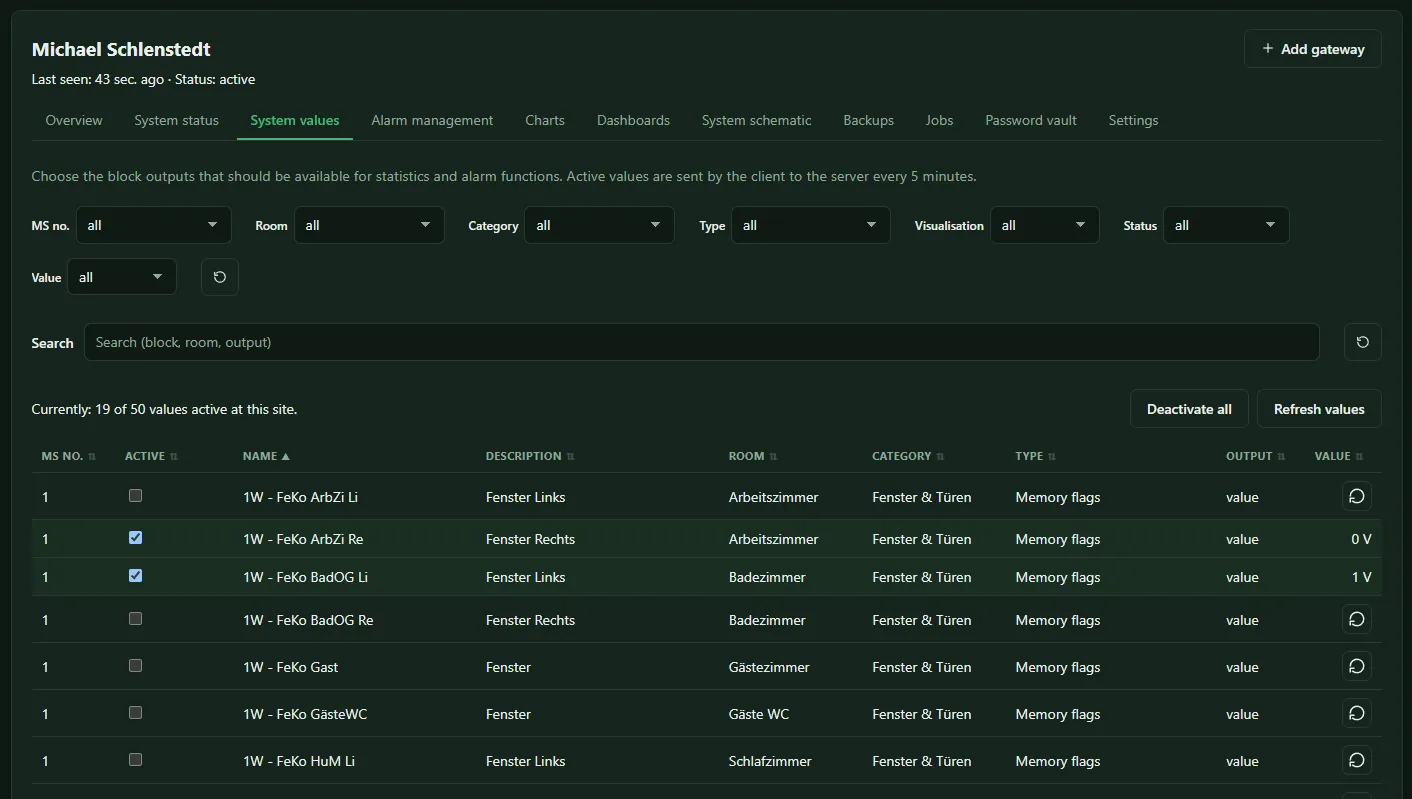
Tick the desired outputs in the Active column. Every tick is saved immediately. Above the table you see how many values are active at this site and how many your license allows. All Miniservers of the site are counted together. Once the limit is reached, further values can only be activated after you deactivate others.
The gateway adopts the new selection at its next contact. The first values appear after a few minutes.
Viewing the current value
Section titled “Viewing the current value”The Value column shows the most recently read value. For an output that is not yet recorded, the button in this column (Request value) fetches the current value from the Miniserver once; this takes up to 3 minutes. Refresh values does this for all visible rows.
Further actions
Section titled “Further actions”- Refresh has the gateway read the blocks from the Miniserver again. This is only necessary if a block that is in the program is missing.
- Deactivate all deactivates all rows shown by the current filter – not the entire selection. Values already recorded are kept.
Selecting values is allowed from the role Administrator upwards.
Limits
Section titled “Limits”How many values per site (across all its Miniservers together) are recorded and how long they are stored depends on the license tier, see License tiers. At first the values are available at 5-minute intervals, after that as hourly values.
Reporting new block types
Section titled “Reporting new block types”If SmartFleet finds block types in a program that it does not know yet, a notice appears asking whether this data should go to the SmartFleet developers. Yes opens a prepared email; if the report is too large for that, the browser downloads it as a file for you to attach. For each block type the report contains only technical details about the type – no display names, no notes and no identifier of the installation. No hides the notice until another new type turns up. This way SmartFleet learns new blocks with every version. The notice is shown from the role Administrator upwards.