System schematic
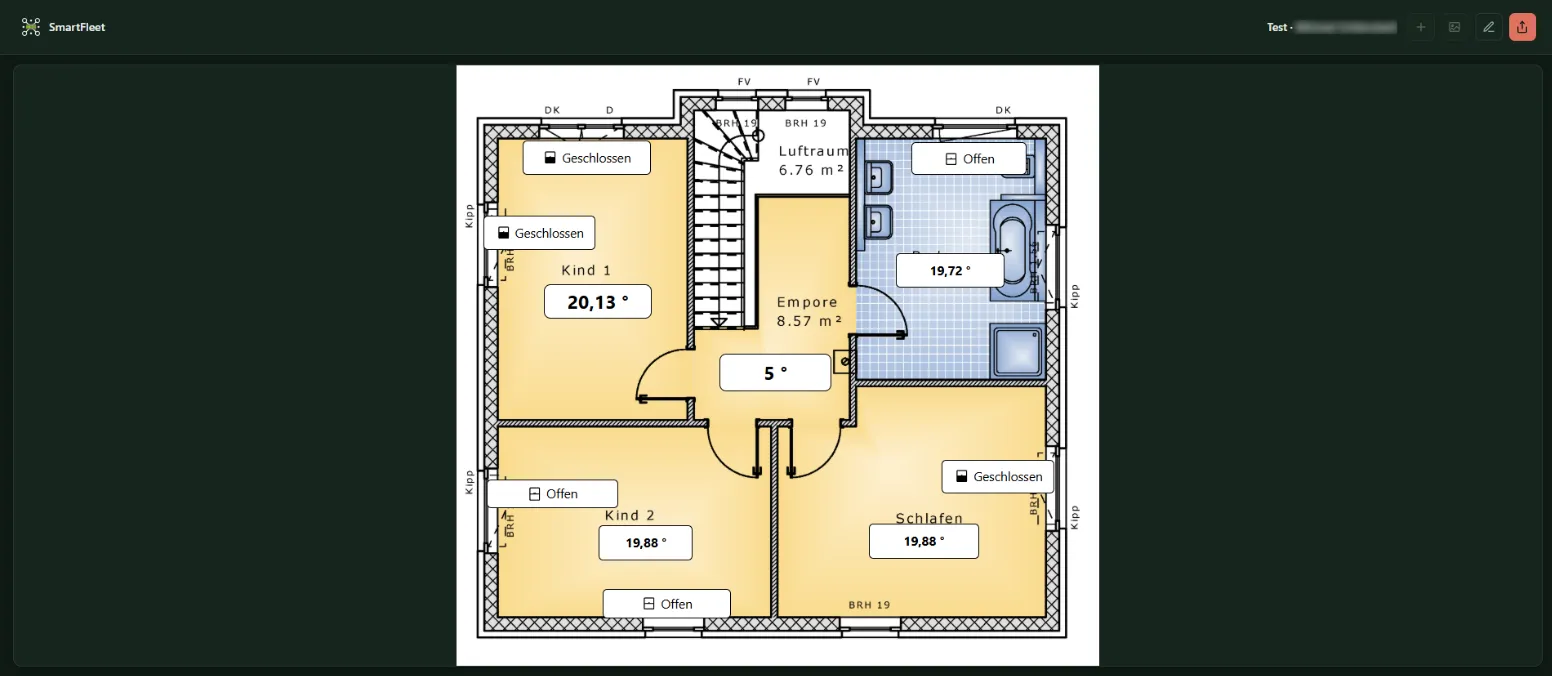
A system schematic is an image – a floor plan, a heating schematic, a photo of the control cabinet – with values in the right places. An open system schematic refreshes itself every minute. System schematics exist per site and per Miniserver.

Creating a system schematic
Section titled “Creating a system schematic”-
System schematic tab → New system schematic, enter a name, Create.
-
Open it and choose Edit.
-
Upload an image under Background image. The Display is Original size, Scaled to fit or Stretched. Without an image an empty surface with a 16:9 aspect ratio is available.
-
Add elements with Add element and move them on the image.
-
Finish editing and save.
Elements
Section titled “Elements”| Group | Types |
|---|---|
| Values | System value, Device value |
| Labels | Text, Shape |
| Links | External link, Link to a system schematic, Link to a dashboard |
For values you choose which figure is shown (Current, Minimum, Maximum, Average) and with which unit. For values that are only 0 or 1, the Value mapping translates them into words, such as Off/On or Closed/Open, or into your own texts. Elements can also carry symbols that change with the state.
In the Appearance section you set font, colours, border, Rotation (degrees) and Layer.
With the link elements you build a connected view of the installation from several system schematics and dashboards: from the floor plan to the heating schematic and back.
Managing
Section titled “Managing”Rename, Delete and shares work as for dashboards. Editing is allowed from the role Administrator upwards; editing only works in a sufficiently wide window, viewing on any device.
Above the table you see how many system schematics have been created at this site and how many your license allows. The whole site is counted, even if the table at a Miniserver only shows that Miniserver’s system schematics. Once the limit is reached, New system schematic is locked. The limits per tier are listed under License tiers.