Miniserver backups
The gateway backs up the configuration of the Miniservers on the customer network, encrypts it with the site’s password vault and uploads it to your server. Without a vault it creates no backups. It only backs up if something has changed since the last backup. An installation nobody touches therefore creates no unnecessary copies.
Setting up a schedule
Section titled “Setting up a schedule”-
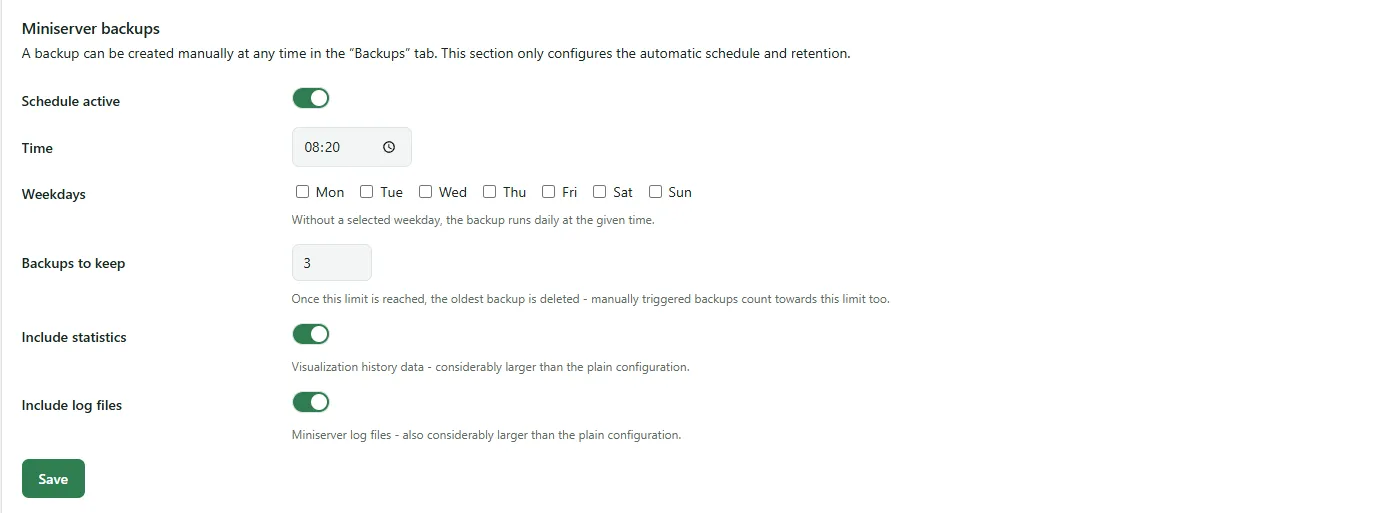
Open the site page → Settings tab → Miniserver backups.
-
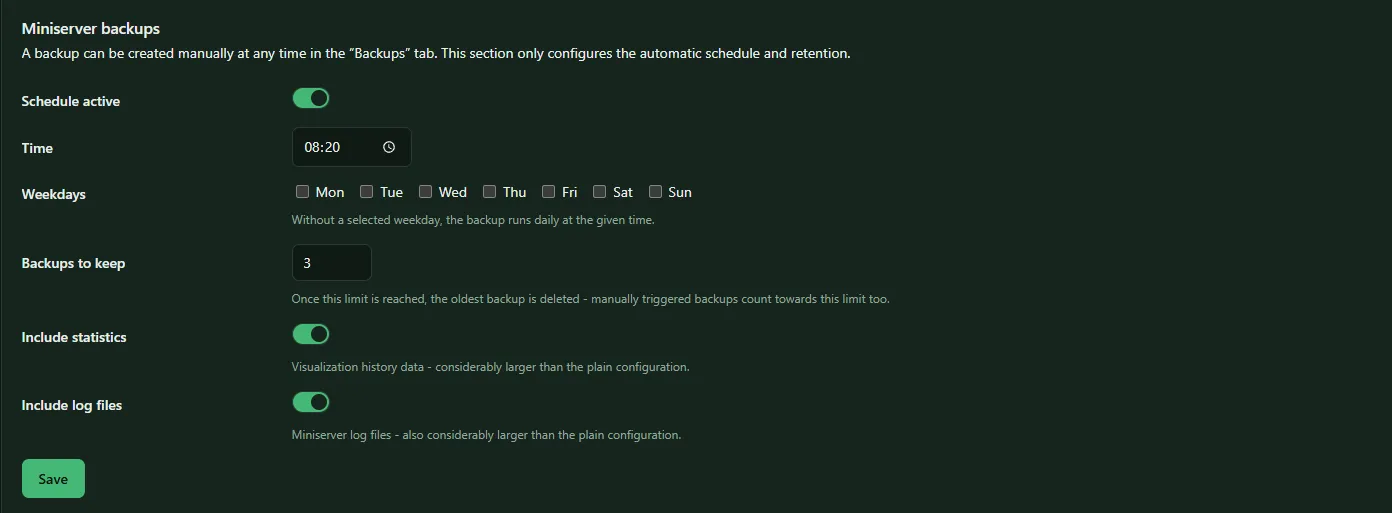
Set Schedule active, choose the Time and, if you don’t want to back up daily, the Weekdays. Without a selected weekday the backup runs daily.
-
Define how many backups are kept (Backups to keep, 1 to 100). When the limit is reached, the oldest is deleted; manual backups count too.
-
Optional: Include statistics and Include log files. Both make the backups considerably larger than the configuration alone.
-
Save. The gateway adopts the schedule at its next contact.
For a SmartFleet Gateway the time applies in the local time of the respective Miniserver, for a LoxBerry in the LoxBerry’s time zone.
Creating a backup by hand
Section titled “Creating a backup by hand”In the Backups tab of the site page, click Create backup and choose the device. The backup is created as a job; after one to two minutes it appears in the list. You need at least the role Administrator for this.
The list of backups
Section titled “The list of backups”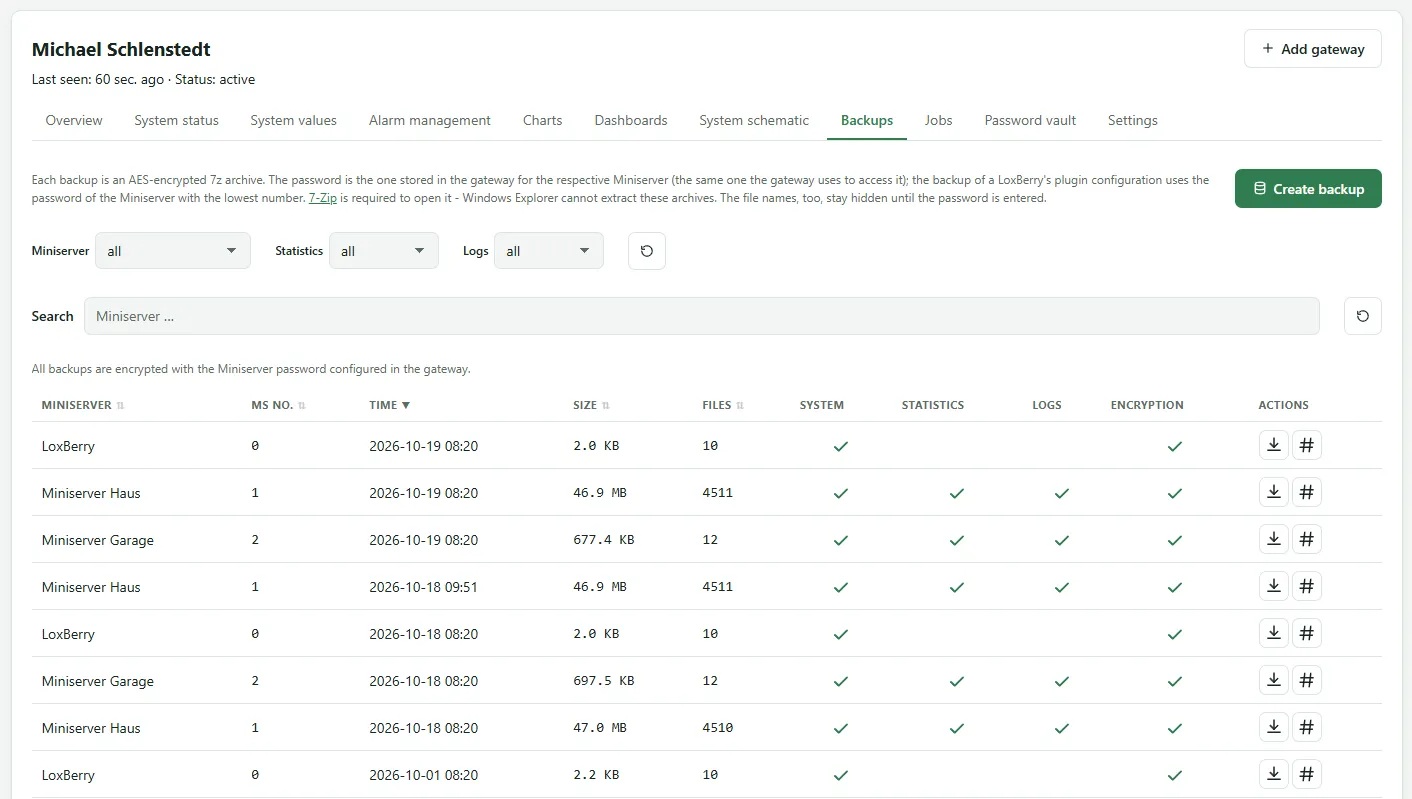
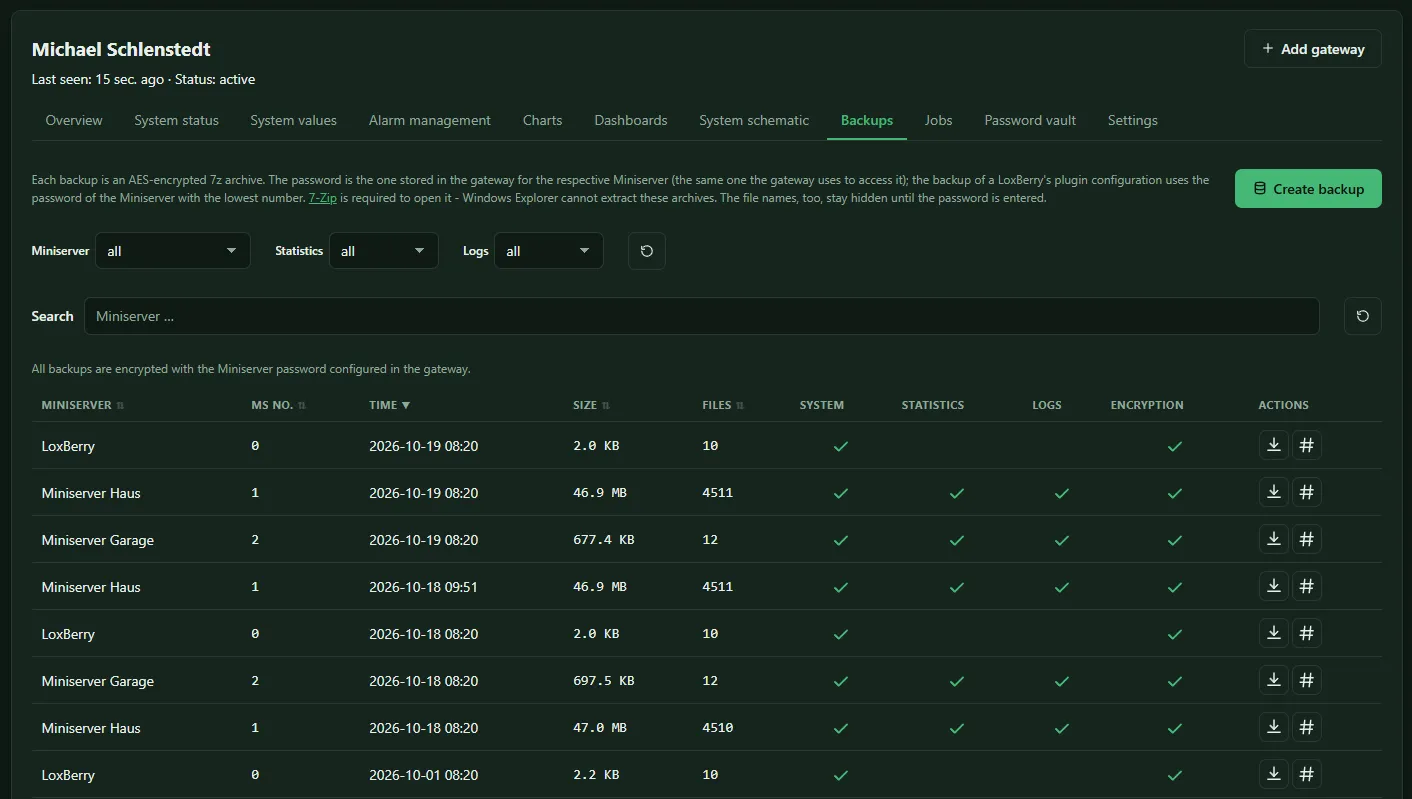
The Backups tab shows the backups of all the site’s devices, filterable by Miniserver and by whether statistics and logs are included; the Backup tab on a device page shows only those of that Miniserver. For each backup you see the time, Size, number of Files and whether Statistics and Logs are included. The Storage column shows encrypted for backups with the password vault and Miniserver password for older ones.
- Download backup asks for the master password for a backup with the vault and then downloads the decrypted 7z archive. An older backup downloads without asking.
- Download checksum (SHA-256) provides the checksum of the downloaded archive, with which you can later verify the file’s integrity. For a backup with the vault the server only knows it after the backup has been decrypted once; until then it also asks for the master password.
Downloading is allowed from the role Viewer Plus upwards.
Encryption
Section titled “Encryption”The gateway encrypts every backup before it leaves the customer network, with a key of its own, and seals that key for the site’s password vault. The server cannot read a backup. When you download, your browser opens the vault with the master password and releases only the key of this one backup; the master password never leaves the browser.
Without a vault no backup is created, not even temporarily. The system status reports this as an error every day.
The server does not accept backups without this encryption. A gateway running an older version (LoxBerry plugin before 1.3.0, SmartFleet Gateway before firmware 1.1.0) therefore uploads no backups until it is updated.
Older backups are 7z archives encrypted with the password of the respective Miniserver at the time of the backup. They remain until retention removes them.
Restoring a backup
Section titled “Restoring a backup”Unpack the downloaded archive with 7-Zip. A backup with the vault needs no password any more; an older one needs the Miniserver’s password, and until then even the file names stay hidden. The files correspond to the Miniserver’s file system and are restored with Loxone’s tools.
The plugin’s self-backup
Section titled “The plugin’s self-backup”Besides the Miniservers, the LoxBerry also backs up the configuration of the SmartFleet plugin itself. You find it in the list under the gateway “LoxBerry”. With it a LoxBerry can be reconnected to the same site after a card swap, see Plugin interface → Restore. Like the Miniserver backups it is encrypted with the password vault; older ones with the password of the Miniserver with the lowest number among those the LoxBerry transmits.
A SmartFleet Gateway does not back itself up. It stores only its configuration permanently; after a factory reset or replacement it is set up again and paired with a new code, see Replacing a gateway.
Space on the server
Section titled “Space on the server”How much space a site may use is set at Storage limit under Site settings.