System documentation
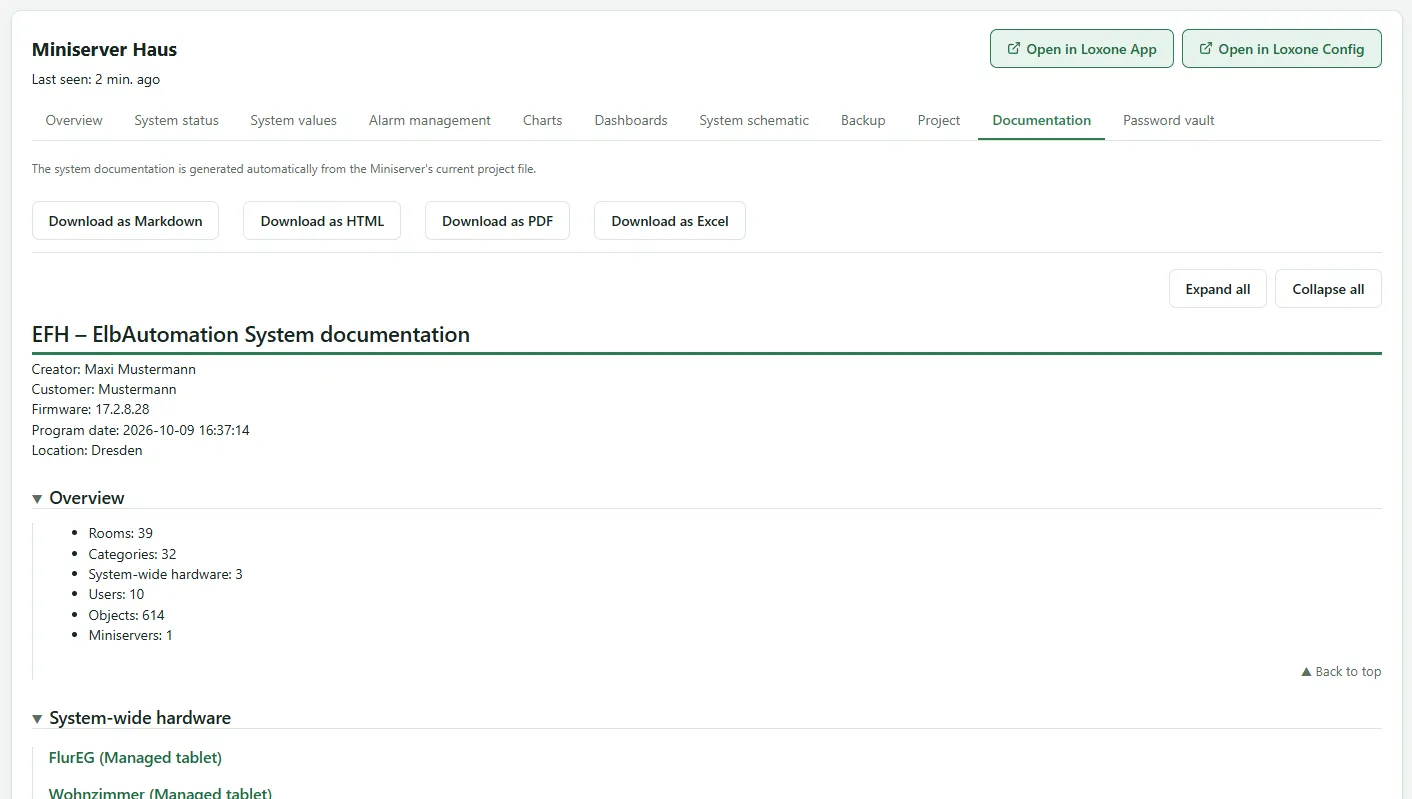
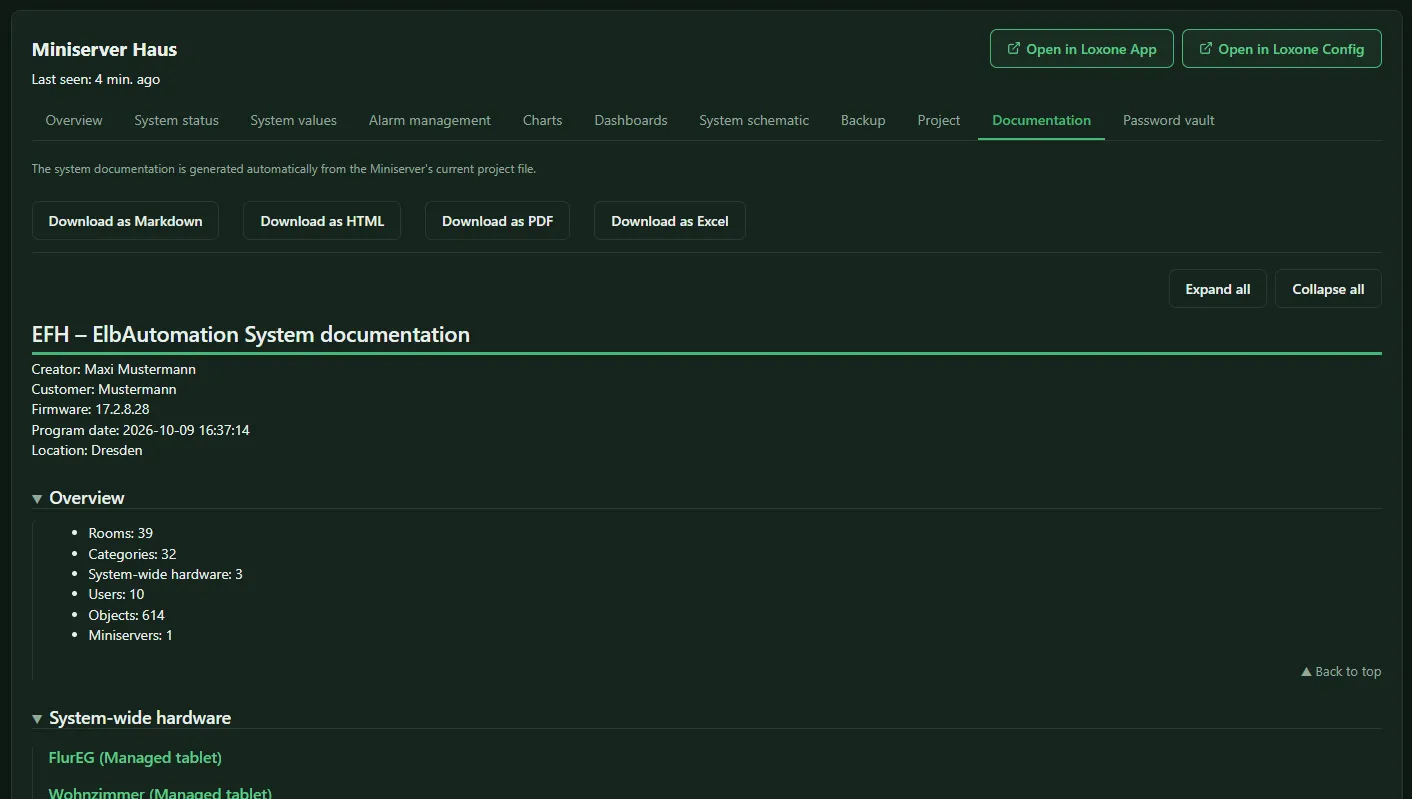
The Documentation tab on a Miniserver’s device page generates complete system documentation from the current project file. You don’t have to maintain anything: after every program update it is up to date.
The tab itself shows a preview, marked (preview) in the heading. It only contains the hardware with its inputs and outputs, without users, virtual inputs and outputs, Modbus and access data. The complete documentation is created when downloading.
Contents
Section titled “Contents”- Overview: author, customer, firmware, program date, location and key figures of the installation (Rooms, Categories, Users, Objects)
- Hardware: Miniservers, extensions, Tree and Air devices with serial number and installation location
- Inputs and Outputs with terminal, designation, room and category
- Virtual inputs/outputs, Modbus and KNX addresses
- User groups and users
Hardware sketches
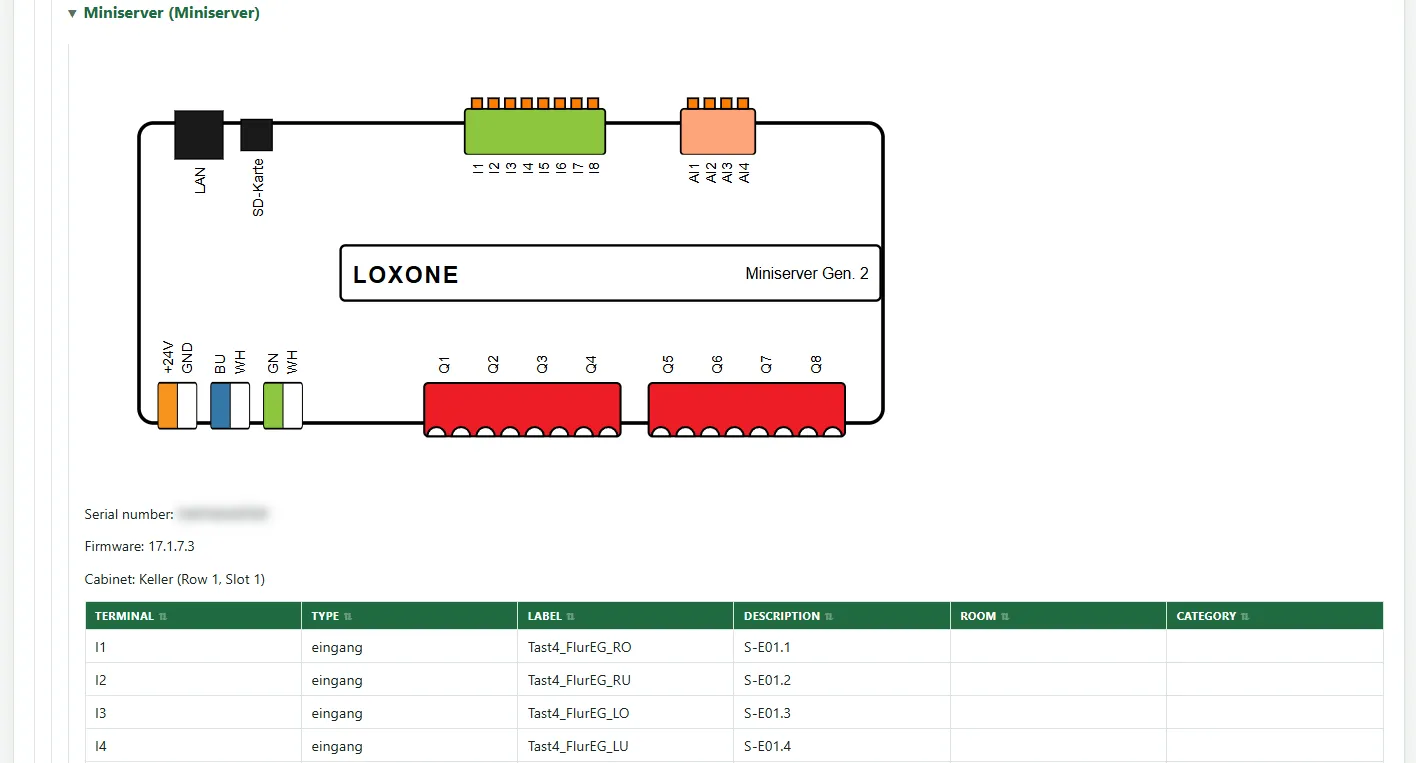
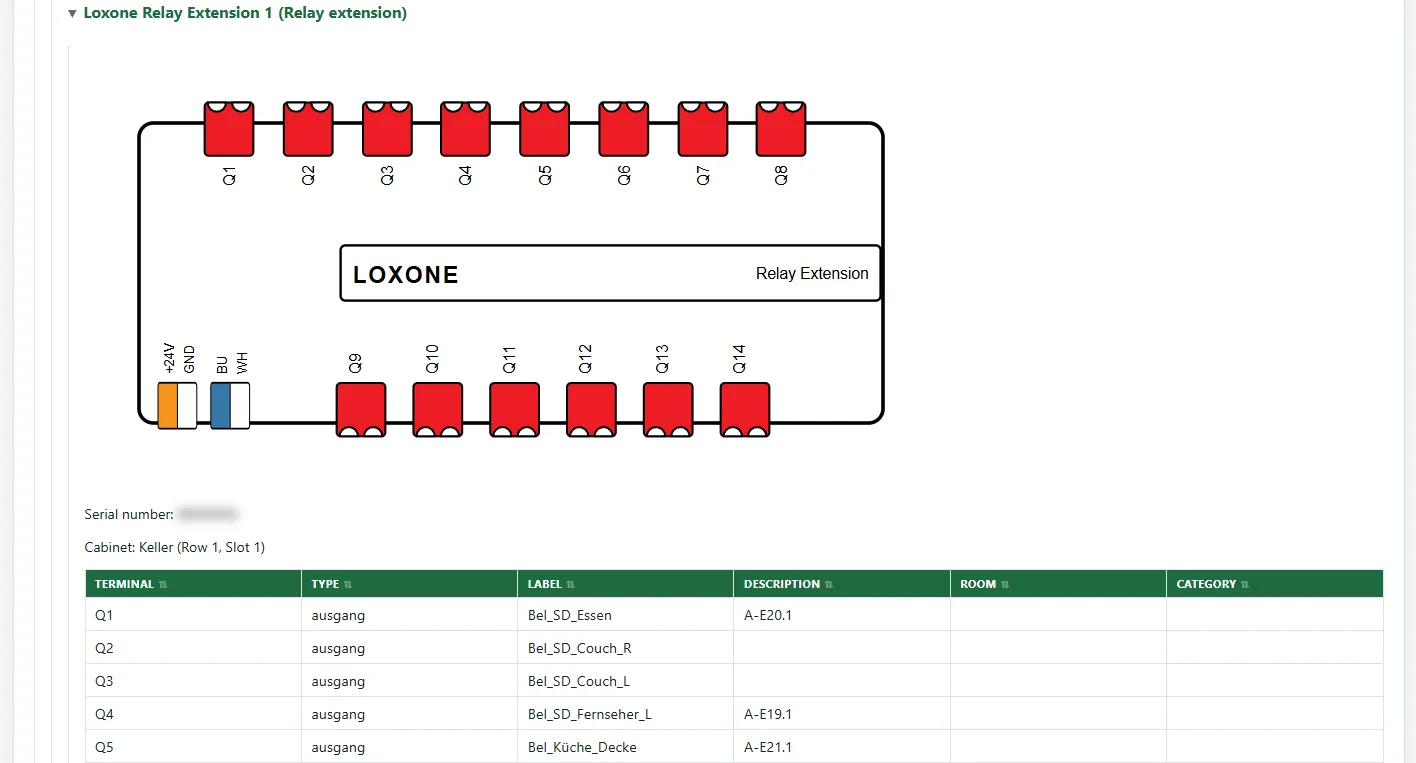
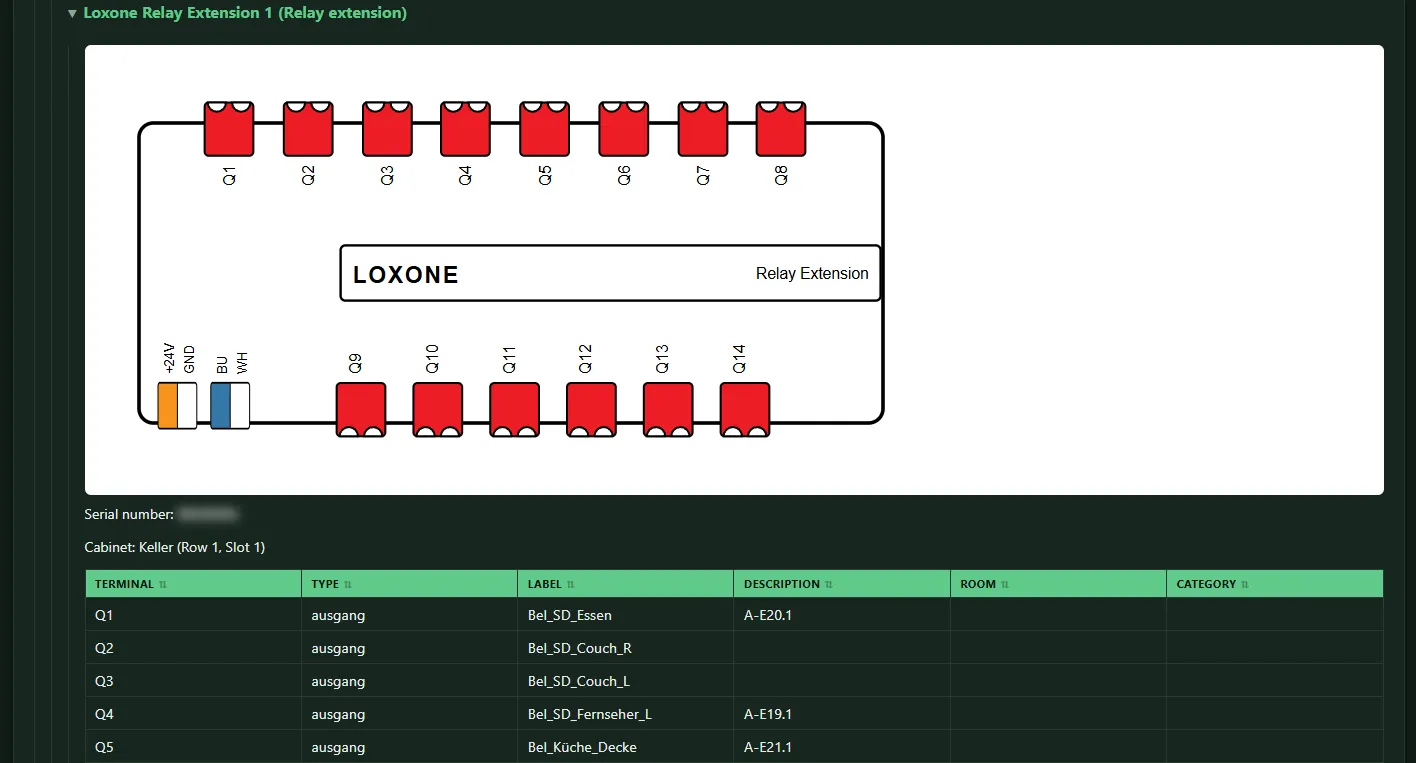
Section titled “Hardware sketches”For every Miniserver and every extension, the documentation draws a sketch of the device with its terminals. Below it are the serial number, the installation location in the control cabinet and a table of which terminal carries which input or output from the program – with designation, description, room and category.

Downloading
Section titled “Downloading”The complete documentation is available for download: Download as PDF, Download as Excel, Download as HTML and Download as Markdown. The PDF version is suited for handing over to the customer, the Excel version for further processing.
It is created from the stored project file. If that file is stored encrypted (see Project files), the buttons show a lock and ask for the master password of the password vault. If the project file is not stored because the site has no vault, the buttons are disabled; the preview remains.
The system documentation needs the automatic program backup (Project tab). It can be viewed from the role Viewer Plus upwards.
When the project file cannot be read
Section titled “When the project file cannot be read”If the project file contains an error, the tab shows a red box instead of the documentation, for example The project file cannot be read.
. The download buttons are then omitted. The box lists the technical details: type of error, location with line and column, an excerpt of that location, size and checksum of the file, and the versions of SmartFleet, PHP and libxml. In the excerpt, control characters and bytes outside ASCII appear as \xNN, so an encoding error becomes visible. Copy details copies the details to the clipboard. These details, or a screenshot of the box, are sufficient for an error report.