Site settings
The Settings tab on the site page gathers everything that concerns only this one site. Changes can be made from the role Administrator upwards. If a value is fixed in config.php, the page shows it but does not allow changing it.

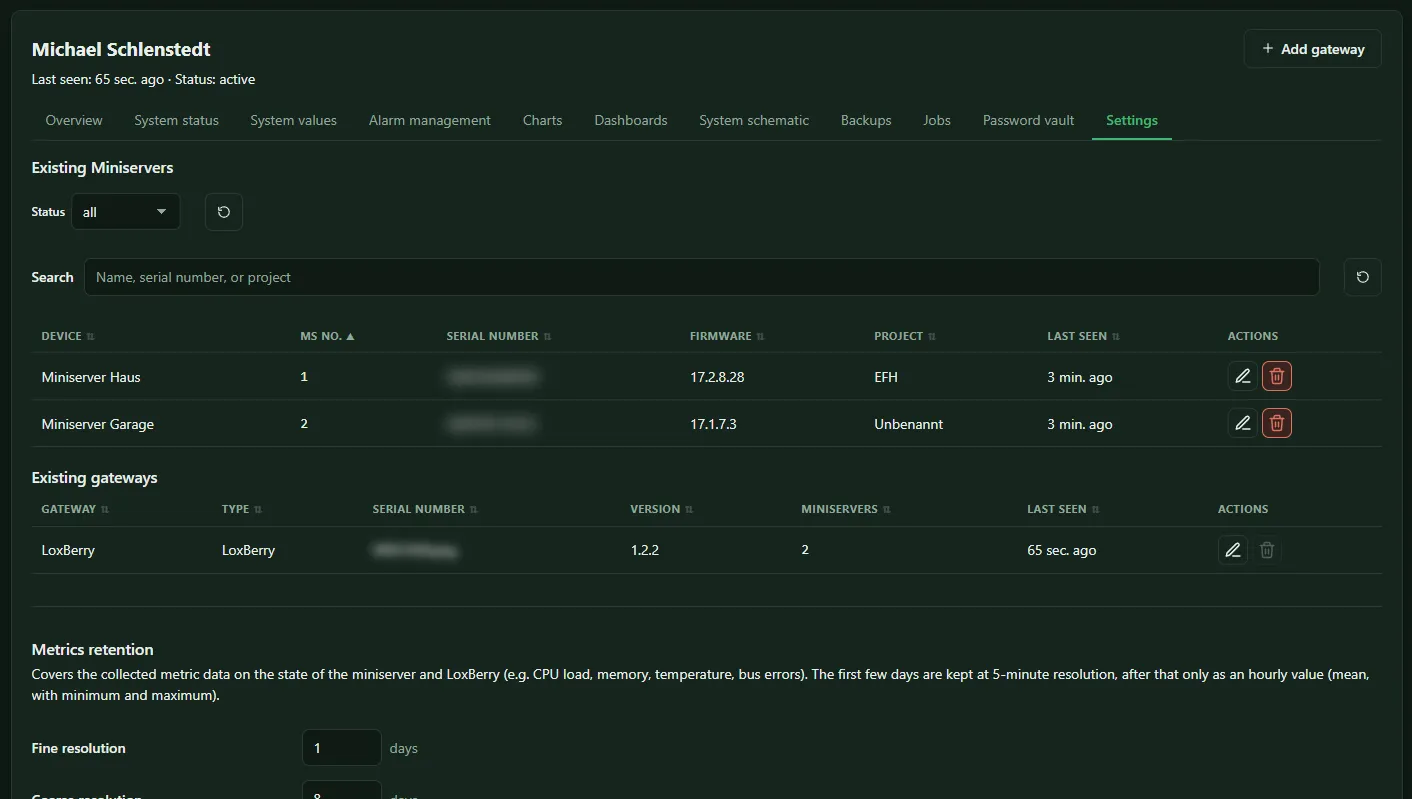
Existing Miniservers
Section titled “Existing Miniservers”The table Existing Miniservers shows all Miniservers of the site. Via Edit you can:
- set your own Display name. Reset name restores the name the Miniserver reports itself.
- remove a Miniserver with Delete Miniserver, for example after it has been dismantled. History, events and backups are lost. If the device is still entered on the gateway or in the LoxBerry, it reappears at the next query.
Existing gateways
Section titled “Existing gateways”Below, the table Existing gateways shows every LoxBerry and every SmartFleet Gateway of the site. Via Edit you set your own Display name; it takes precedence over the name the gateway sends with every report. Reset name puts the reported name back. This needs at least the role Administrator.
Delete removes a gateway; only an Owner may do this. The gateway is detached from the site and can no longer sign in. Its Miniservers stay at the site with history and backups until another gateway transmits them. Values, events, jobs and alarm rules of the gateway and its remote maintenance password in the vault are deleted. To confirm, you type the gateway’s name. The last gateway of a site cannot be removed – use Deleting a site instead.
Miniserver backups
Section titled “Miniserver backups”Here you set the schedule for automatic backups. Without a schedule no automatic backup is created. Details under Miniserver backups.
Measurement retention
Section titled “Measurement retention”Applies to the history values of Miniservers and gateways, such as CPU load, memory, temperature and bus errors.
| Fine resolution | values stay at 5-minute intervals for this many days |
| Coarse resolution | after that they stay this long as hourly values |
Event retention
Section titled “Event retention”Retention period in days for the events in the System status tab and the jobs in the Jobs tab.
Storage
Section titled “Storage”The Storage limit limits this site’s entire file storage on the server – backups, project files and images. Empty means unlimited. A bar shows how much is used. When the limit is reached, an event appears in the system status. If storage is fixed for the whole installation, as in the Cloud, the field only displays the value.
Alarm management
Section titled “Alarm management”Defaults for all alarm rules of this site that have no value of their own. See Alarm rules.
Limits of this site
Section titled “Limits of this site”In the Enterprise tier the limits for system values can be set individually here: how many values are recorded and how long they stay at which resolution. 0 means unlimited in each case.