Updates
You install server updates under System Administration → Updates. Only an Owner may do this. Every package is signed by SmartFleet; the server checks the signature before it touches a single file.
What the tab shows
Section titled “What the tab shows”- Installed version, Last check and Last update
- Available versions with date and changes
- Requirements for updates from the interface
- Automatic updates, if your license includes them
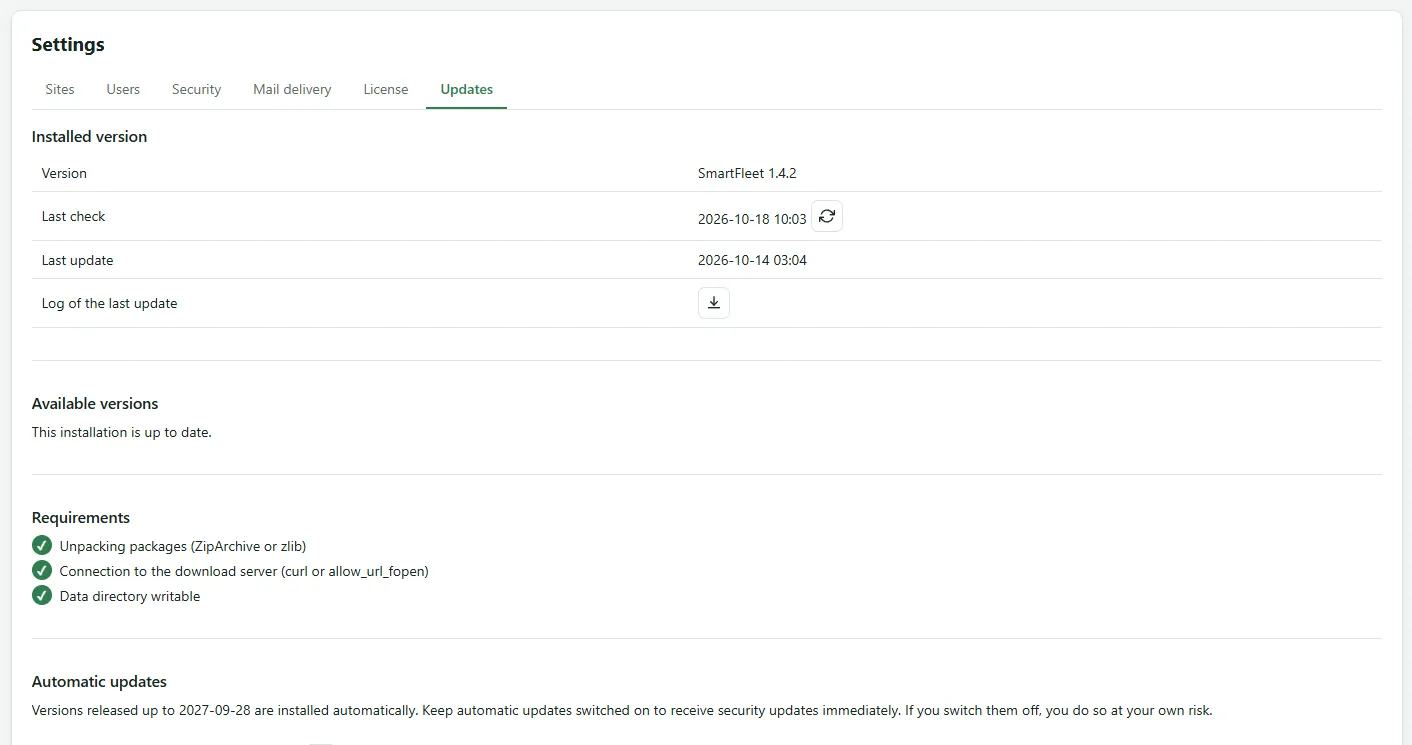
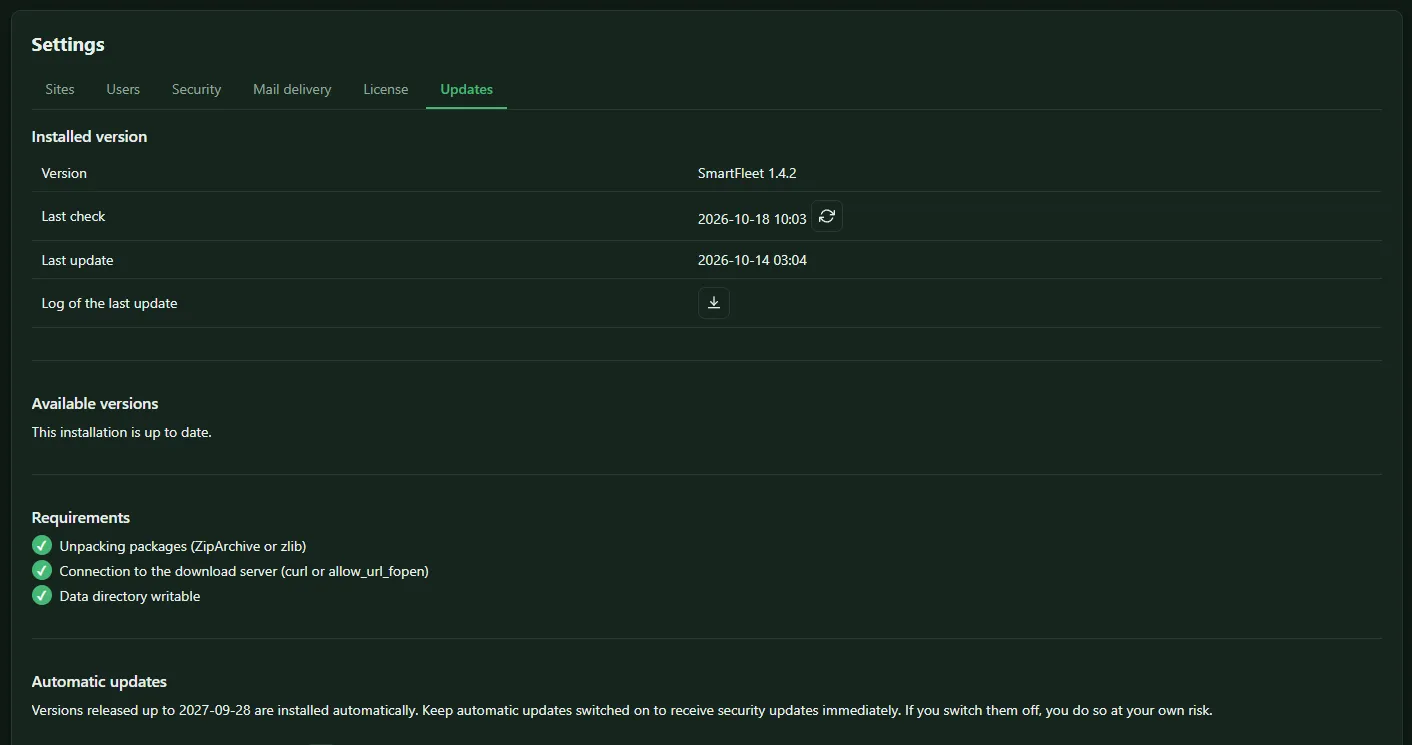
The button next to Last check (Check for new versions now) asks the download server right away. If a new version is available, a notice appears at the top of the partner UI, and all owners receive an email.
Requirements
Section titled “Requirements”| Unpacking packages (ZipArchive or zlib) | for unpacking the package |
| Connection to the download server (curl or allow_url_fopen) | for the version list and automatic updates |
| Data directory writable | for backing up the previous state |
If any of these is missing, update via FTP: unpack the package and upload the folder over the existing installation. config.php and the data directory remain untouched.
Manual update
Section titled “Manual update”- Download the package with the highest version number. Updates are cumulative; you don’t need to install intermediate versions unless the list names a mandatory step.
- Select it under Manual update with Choose package. The package is uploaded in pieces and verified.
- Click Install.
On a hosted installation (Cloud, Enterprise), the operator installs the updates. There the heading is followed by disabled for this installation, and uploading is blocked.
During the update the page shows every step: Downloading package, Checking package, Unpacking package, Creating backup, Enabling maintenance mode, Replacing files, Updating database, Final check.
In maintenance mode the server accepts no messages from the sites. The sites simply report again afterwards; nothing is lost.
If an update fails
Section titled “If an update fails”Before copying, the server backs up the previous state. If a step fails, it restores it by itself, and the installation keeps running unchanged. If it fails before copying, there is nothing to restore; an automatic update tries again in the next time window. Either way the owners get an email naming the step and the reason. You can continue an interrupted update with Continue or cancel it with Restore previous version.
If you had changed files of the installation by hand, they are overwritten. They are kept in the backup and listed in the update log.
Automatic updates
Section titled “Automatic updates”Automatic updates are part of Maintenance and are included from the Silver tier. They install versions released within your maintenance period.
- Update automatically switches them on or off.
- Time window defines the hours in which an update may run.
Automatic updates are best left switched on so that security updates arrive immediately.
Device updates
Below is a separate section for the gateways at the customer’s site: SmartFleet gateways and LoxBerry plugins of this installation.
Automatic updates of the gateways are also part of Maintenance. Without it, this section shows the note Automatic updates are part of Maintenance and not included in this license tier.
instead of the settings, and the plugins switch to “notify only”.
| Setting | Effect |
|---|---|
| Automatic updates | Gateways install new firmware themselves as soon as it is released. The LoxBerry installs a new plugin version during the daily run of its plugin management; the plugin sets its own auto-update setting accordingly, whatever was chosen in the plugin management. |
| Time window | Applies to gateways: they install only within this window and restart while doing so. The LoxBerry follows the schedule of its plugin management. |
You can also update a single gateway right away on its device page with Update now, see Setting up the SmartFleet gateway and Installing the plugin.
Installation statistics
Section titled “Installation statistics”When Send anonymous installation statistics is on, the server reports once a day, anonymously, to smartfleetmanager.de which version it runs. This tells us how many installations exist and which of them a fault may affect. Exactly the values under What is sent are sent: a random identifier, version, licence tier, number of sites, gateways and Miniservers, and the PHP version. The table shows them as they appear in the next report. No names, addresses, domains or serial numbers are sent, and no IP addresses are stored.
On a new installation the statistics are preselected, see Installation. The update to 1.7.2 switches them on once; if you switch them off, later updates do not switch them on again. Last report shows when the last report arrived.
In config.php the switch can be fixed with 'statistik' => false (or true). The tab then shows it locked.