Remote maintenance
Remote maintenance lets you reach the gateway at the customer without opening a port there. You start it the same way for both kinds of gateway:
- SmartFleet Gateway: the gateway’s page opens in a tab of its own in the partner UI, operated just as on site. Every click goes through your server to the gateway, see Remote maintenance of a SmartFleet Gateway.
- LoxBerry: the LoxBerry establishes an encrypted outgoing connection itself and receives a random, public HTTPS address. Through it you reach its interface and, through the LoxBerry, also the Miniservers on the customer network.
Requirements
Section titled “Requirements”- You have at least the role Administrator for this site.
- The partner UI has been opened via HTTPS.
- The customer has set a remote maintenance password on the gateway and has not blocked remote maintenance. See below.
Starting remote maintenance
Section titled “Starting remote maintenance”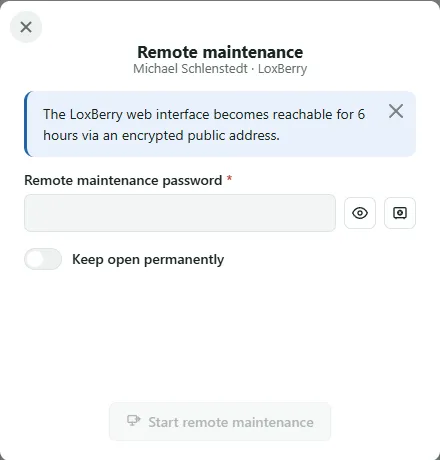

-
Open the gateway’s page – on the site page, click its name in the Gateways table – and click Remote maintenance at the top.
-
Enter the Remote maintenance password. If it is stored in the site’s password vault, take it over with the vault button next to the field (Take from password vault) and unlock the vault with the Master password of the password vault.
-
Click Start remote maintenance. The popup shows how far the job has got: Request sent, Picked up by the gateway, Establishing connection. This takes up to two minutes. You can close the popup; the button keeps showing the progress.
-
For a SmartFleet Gateway, a tab of its own has already opened with the click; after the setup it shows the gateway’s page. For a LoxBerry, Remote maintenance is open appears: open the displayed Address. You land on the LoxBerry’s login and sign in there with the LoxBerry’s credentials.
Remote maintenance closes by itself after 6 hours. The popup shows when. End remote maintenance closes it earlier.
Remote maintenance of a SmartFleet Gateway
Section titled “Remote maintenance of a SmartFleet Gateway”For a SmartFleet Gateway, remote maintenance opens the page of the gateway itself, with the same controls as when signing in via its IP address. It is started as above, with the gateway’s remote maintenance password. On the gateway, a remote maintenance password must be set and Remote maintenance allowed switched on (gateway page, Security).
- Own tab. Start remote maintenance opens a new tab at the same moment and brings it to the front. It first shows the connection (Connecting …) and then the page of the gateway in full screen. A narrow band above the page shows the site and when the session ends; End session replaces signing out there.
- Popup. Once connected it shows Remote maintenance is open. Open session brings the tab back to the front or opens it again if it was closed.
- Response time. Every click goes through the server to the gateway and back; an answer takes about one to three seconds. While something is under way, the band shows Transferring … and the button shows what is happening. Another click does not send the same command again. If no answer arrives, the page says so; the command may still be carried out.
- On site only. Admin password and pairing cannot be changed through remote maintenance; the page shows a note there that this is only possible directly at the gateway.
- Security as with a LoxBerry. Password vault, Remote maintenance allowed and the remote maintenance password can be operated. Switching off Remote maintenance allowed ends the session at once. A new remote maintenance password ends it as soon as it is saved, because the session was opened with the previous one; the tab then shows the new password for copying (Copy the new password now).
- Passwords. The browser encrypts Miniserver, Wi-Fi and remote maintenance passwords with the key of the remote maintenance session before they go to the server; only the gateway can read them. Only the popup that started the session knows the key. If that page has been reloaded since, restart remote maintenance for passwords.
- Firmware. Update from the server and firmware file can be used, see Updating the firmware. The file goes via the server; the tab must stay open until it has arrived there.
- Changing the network, restarting and updating the firmware end the session. New network settings apply on trial: if the server or a Miniserver answers within 5 minutes, they stay, otherwise the gateway restores the previous ones. The tab waits that long and then shows the result; the same message appears in the system status of the site.
In the tab, the gateway’s page runs sealed off from the partner UI: it cannot reach its sign-in or other sites and cannot open connections to the outside.
What the customer sees and controls
Section titled “What the customer sees and controls”On the SmartFleet Gateway, the gateway’s page shows in the overview and in the Security menu item whether remote maintenance is open and when it ends. The customer’s two locks are the remote maintenance password and the Remote maintenance allowed switch; switching it off ends open remote maintenance at once. See Interface → Security.
In the plugin on the LoxBerry, Your service partner is connected right now with the remaining time is shown while remote maintenance is open. The customer holds two locks:
- The remote maintenance password. The customer sets it in the plugin under Settings → Remote maintenance. Without a password no remote maintenance is possible. The plugin checks how easy it is to guess and suggests a random password on request. The LoxBerry stores it readable only for itself so that it can be transferred to the password vault again; it is not shown again, and a forgotten password can only be set anew.
- The block. With Block the customer switches remote maintenance off completely; then even the right password doesn’t help. Open remote maintenance is closed at that moment.
If the customer has agreed to the transfer to the vault, a newly set remote maintenance password lands automatically in the site’s password vault.
Why this is secure
Section titled “Why this is secure”Remote maintenance needs three things at once: access to your partner UI, the remote maintenance password and your server’s signing key. The server doesn’t know the password. Your browser computes a response from it that applies only to this one job, and the gateway checks it. For a LoxBerry, the connection’s address is reported only to your server and expires when it is closed; a SmartFleet Gateway has no such address.
If it doesn’t work
Section titled “If it doesn’t work”The result is shown in the popup and as an event with the source Remote maintenance in the system status. Common reasons:
| Message | What to do |
|---|---|
The password vault holds no remote maintenance password for this LoxBerry. |
Enter the password by hand or ask the customer to set it anew in the plugin |
Remote maintenance needs an encrypted connection (HTTPS). This page was opened without HTTPS. |
Open the partner UI via https:// |
Blocked on the LoxBerry |
the customer has blocked remote maintenance |
Remote maintenance is not allowed on the gateway. The operator has to allow it on the setup page of the gateway under “Security”. |
have remote maintenance allowed on the gateway page under Security |
The gateway has not reported for over a minute. The session continues as soon as it reports again. |
the gateway briefly has no connection to the server; after 10 minutes without a report the session ends |
No remote maintenance was started. Please start it in the popup of the site. |
the tab was opened without a start; start remote maintenance in the popup of the site |
| Waiting never ends | Is the site reporting? See Site page, connection status |