Site page
You open the site page from the Site overview by clicking the name. It brings together everything that belongs to a customer installation.
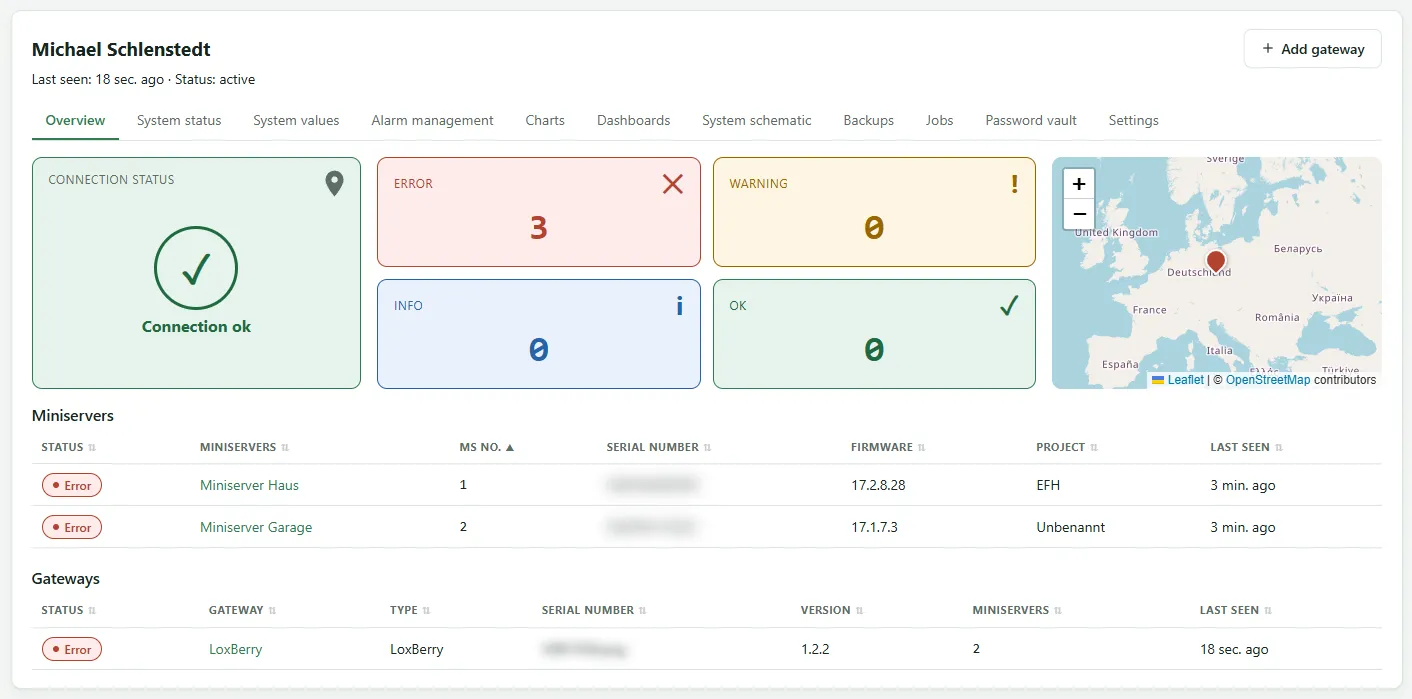
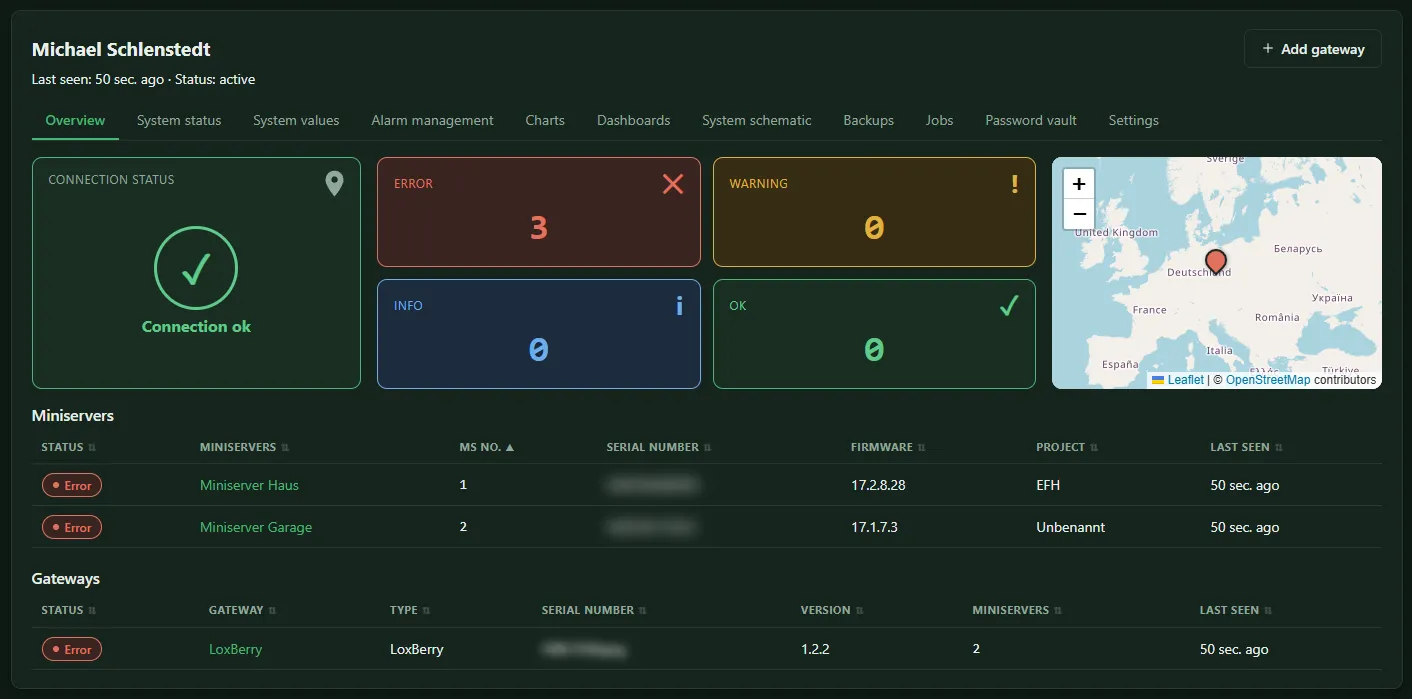
| Tab | Content |
|---|---|
| Overview | connection status, counters per state, map, the site’s Gateways and its Miniservers with state, serial number, firmware and project |
| System status | events of all devices, see System status and events |
| System values | selection of the recorded values, see System values |
| Alarm management | Alarm rules and Muting |
| Charts | charts of the recorded values, see Charts |
| Dashboards | Dashboards of this site |
| System schematic | System schematics of this site |
| Backups | backups of all devices, see Miniserver backups |
| Jobs | log of all jobs sent to the gateways, see Jobs |
| Password vault | the site’s password vault |
| Settings | Miniservers, backup schedule, retention and storage, see Site settings |
Which tabs appear depends on your license tier and your role. A tab whose feature is not enabled says so.
Adding a gateway
Section titled “Adding a gateway”At the top right of the page is the Add gateway button. It creates a code for another gateway at this site, see Another gateway at a site. Only an Owner sees the button.
You start remote maintenance on the gateway’s page; the name in the Gateways table takes you there.
Connection status
Section titled “Connection status”| Display | Meaning |
|---|---|
| Connection ok | last message at most 2 minutes ago |
| Connection delayed | last message 2 to 15 minutes ago |
| Offline | no message for more than 15 minutes, or never reported |
The LoxBerry or the SmartFleet Gateway carries the site’s connection. Its state in the Gateways table, on its device page and in dashboards therefore follows the same levels: warning when the connection is delayed, error after 15 minutes. If a site has several gateways, the site follows the gateway that has been silent the longest.
Gateways
Section titled “Gateways”Below the Miniservers is the Gateways table: every LoxBerry and every SmartFleet Gateway of the site with state, type, serial number, version, the number of Miniservers it transmits and the time of its last message. The first 12 characters of a LoxBerry’s ID serve as its serial number. Clicking anywhere in the row opens the gateway’s page, where you find remote maintenance and update.
If the site has several gateways, each Miniserver shows which gateway it comes through. It can also show:
| Note | Meaning |
|---|---|
| no gateway · not transmitted by any gateway | No gateway reports this Miniserver any more, for example after the gateway was removed. History and backups are kept. |
| “also reported by …” | Two gateways report the same Miniserver. The server takes the data from the first; switch it off in the plugin of the other one. |
Removing a gateway
Section titled “Removing a gateway”You remove a gateway in the site’s Settings tab, see Existing gateways.
Opening a device
Section titled “Opening a device”Clicking anywhere in a Miniserver’s row opens its device page with history, system values, backups and program.