Pairing a site
Pairing connects a gateway to your server, either a LoxBerry with the plugin or a SmartFleet Gateway. You generate a deployment code in the partner UI and paste it into the plugin or into the gateway’s page. After that the site reports every minute.
Requirements
Section titled “Requirements”- The plugin is installed on the LoxBerry, see Installing the plugin, or the SmartFleet Gateway is in the customer’s network, see Setting up the gateway.
- You are logged in to the partner UI as Owner. Only owners see the Sites area.
- Your license still has a free site slot.
Generating a deployment code
Section titled “Generating a deployment code”-
In the partner UI open System Administration → Sites.
-
Click New deployment code. Below the button you see how many slots your license still has free. If all are in use, New site is locked in the popup; adding or replacing a gateway still works.
-
In the popup choose New site, enter the Site name, for example the customer’s name, and click Next.
-
Set the Master password of the password vault and repeat it, then Next. Without a vault the gateway creates no backups and the server stores no project file; that is why it is created together with the site.
-
Secure the Recovery code: Print emergency sheet or copy it, then tick Recovery code stored safely and click Next.
-
Copy the code. It stays in the list Active deployment codes until it is redeemed or expires.

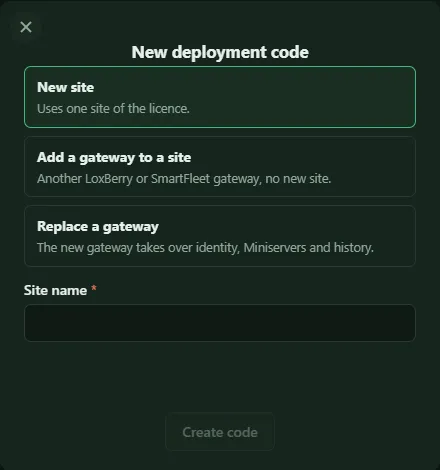
If you enter a name that is already taken, the code is created without the vault steps (the site already has its vault), and the page warns you: when the code is redeemed, it takes over the existing site including its history, and the previous gateway loses its access. That is how you deliberately replace a gateway, for example after a hardware swap. If the site has several gateways, no code is created; you choose the gateway to replace under Replacing a gateway.
Redeeming the code
Section titled “Redeeming the code”In the LoxBerry plugin
Section titled “In the LoxBerry plugin”The plugin calls the code connection code. It starts with FM1- and is long – better paste it than type it.
-
On the LoxBerry open the plugin LoxBerry SmartFleet Gateway → Settings.
-
In the Connection to the server section paste the code into the Connection code field.
-
Click Connect. After a few seconds this appears:
Connected. The site now reports to the server every minute.
On the SmartFleet Gateway
Section titled “On the SmartFleet Gateway”The code is pasted in stage 2 of the setup, in the Gateway step, together with the gateway’s name; Pair redeems it. See Setting up the gateway.
Afterwards
Section titled “Afterwards”The site now appears in the partner UI in the Site overview. The Miniservers show up after the first query, usually within a few minutes.
Another gateway at a site
Section titled “Another gateway at a site”A site can have several gateways – several LoxBerrys, several SmartFleet Gateway devices or both. You need this when one gateway cannot handle all Miniservers of the site. Another gateway does not take up a slot of your license; with the Free license one gateway per site is possible.
In the popup New deployment code choose Add a gateway to a site and the site. On the site page the Add gateway button at the top right takes you there with this site preselected.
Which Miniservers a LoxBerry transmits is set in the plugin: every Miniserver from the LoxBerry configuration is included unless you switch it off because another gateway transmits it. If a Miniserver reports through two gateways at once, the server takes the data only from the first one and shows the conflict at the Miniserver. A Miniserver that moves from one gateway to another keeps its number, its history and its backups.
Replacing a gateway
Section titled “Replacing a gateway”If a LoxBerry or a SmartFleet Gateway fails or has been reset, pair the new gateway in its place. In the popup New deployment code choose Replace a gateway and the gateway. When pairing, the new device takes over identity, Miniservers, history, backups, messages and alarm rules of the old one.
The old gateway can no longer sign in afterwards. The site records the change as a warning in the system status. A LoxBerry can also be replaced by a SmartFleet Gateway and vice versa; the type follows the new device.
If a site has exactly one gateway, you can also use New site with exactly the name of the existing site: the server then does not create a new site but replaces its gateway.
What happens
Section titled “What happens”The code contains your server’s address, a one-time key and your installation’s certificate. The gateway first checks that it really is your server answering at that address, then generates a key pair of its own and has the server issue a certificate for this site. The private key never leaves the gateway. More on this under Security model.
If it doesn’t work
Section titled “If it doesn’t work”Plugin and gateway say what the problem is. The messages and what to do are listed under Pairing errors.