Managing sites
Sites are managed under System Administration → Sites. Only an Owner sees this area.
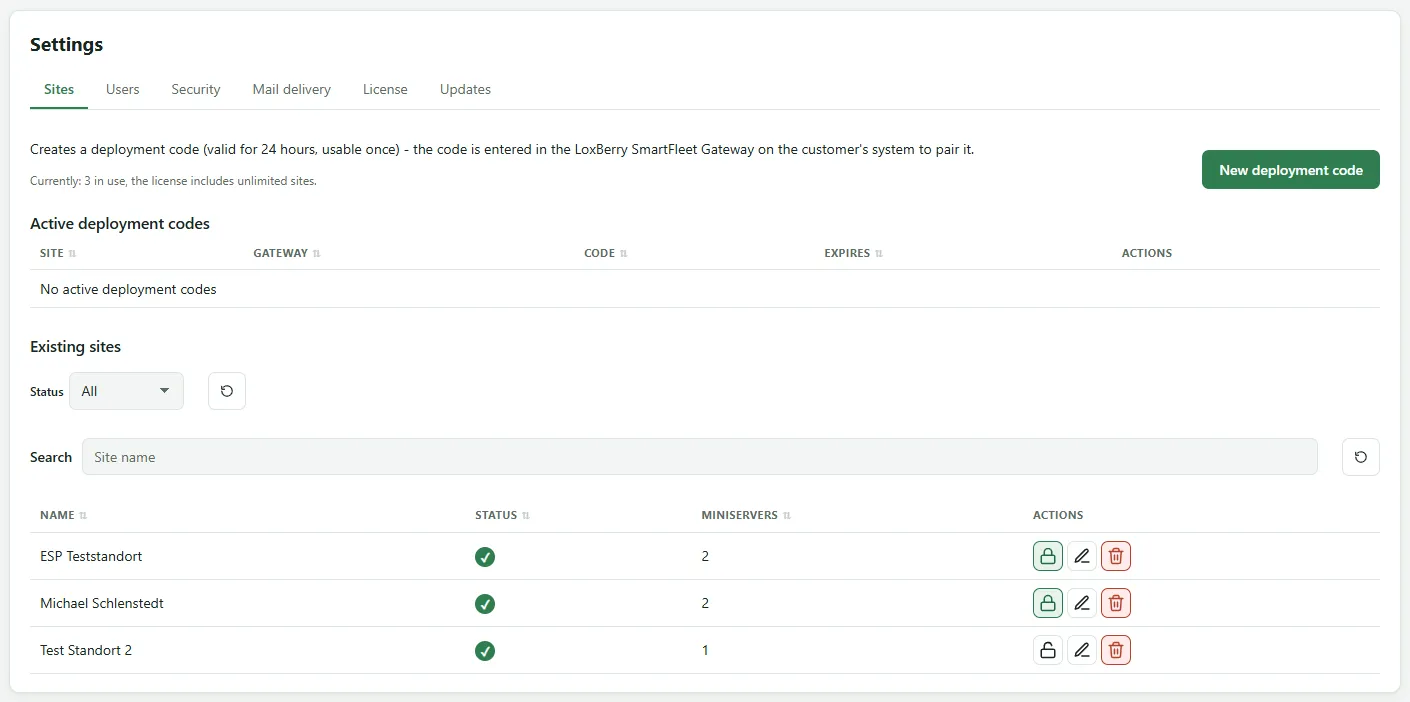
Layout
Section titled “Layout”- New deployment code – create a new site, add a gateway to a site or replace a gateway, see Pairing a site
- Active deployment codes – generated codes not yet redeemed, with site and gateway: for “Replace gateway” the name of the gateway being replaced, for “Add gateway” “new”. You can copy them or delete them after a confirmation.
- Existing sites – all sites, filterable by status and searchable by name
Editing a site
Section titled “Editing a site”Via Edit you change a site’s name and status.
Deactivate : A deactivated site disappears from the site overview and triggers no alarms. Its data is kept. Useful when an installation is temporarily offline, for instance during a refit.
Generate a new deployment code : Renew code generates a code for this site. When a gateway redeems it, it takes over the site including its history, and the previous gateway loses its access. That is how you replace a faulty gateway, swap a LoxBerry for a SmartFleet Gateway, or re-pair a device after a reinstallation or a factory reset. This works only for a site with exactly one gateway; with several, choose the gateway to replace under New deployment code → Replace a gateway.
Deleting a site
Section titled “Deleting a site”Delete removes the site permanently: Miniservers, history, events, backups, dashboards, system schematics, shares and the password vault. To confirm, you type the site’s name. The page lists beforehand what will be lost.
Afterwards the slot in your license is free again. The gateway at the customer can no longer report. Reset a SmartFleet Gateway to factory settings (see The button); on a LoxBerry, disconnect the plugin via Disconnect or uninstall it.
Password vault
Section titled “Password vault”In the same table you set up or manage the password vault for each site.