Site overview
The site overview is the start page of the partner UI. You can reach it at any time via Sites in the header.
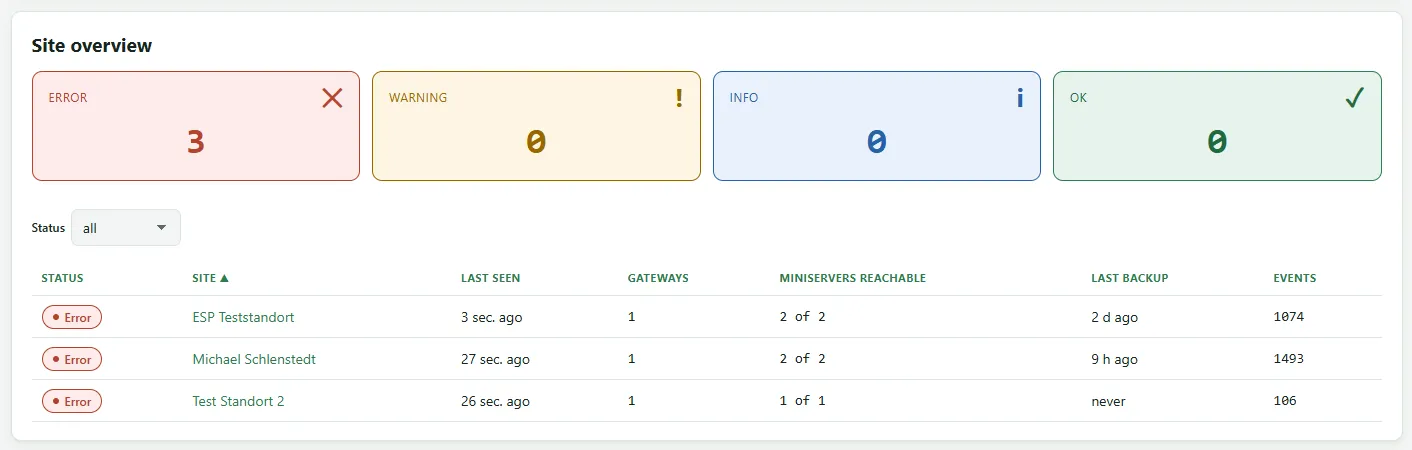
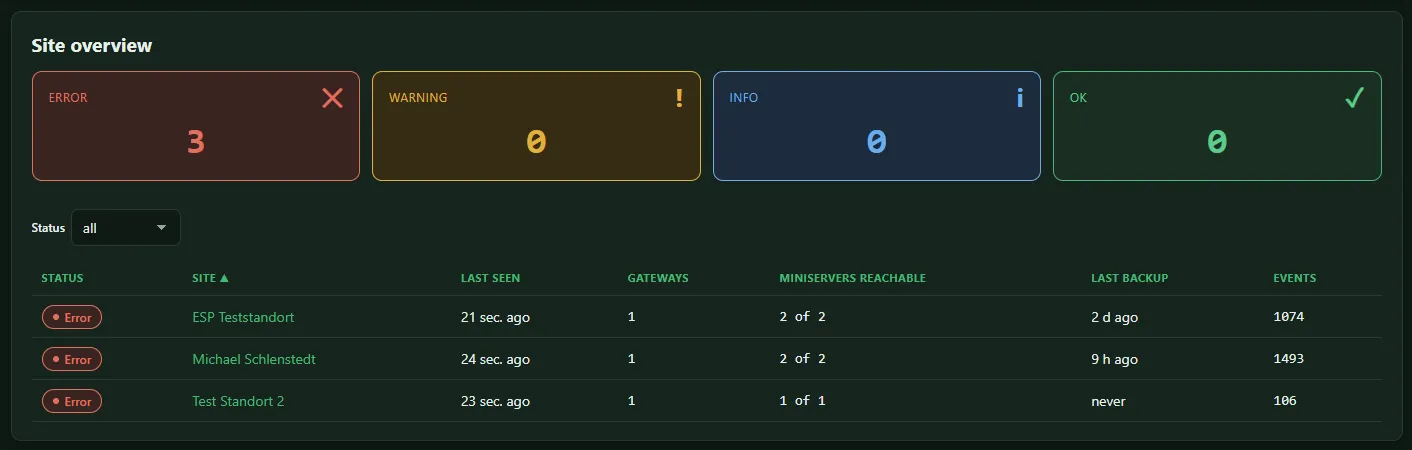
Layout
Section titled “Layout”Map : At the top a map shows where your sites are. The position comes from the Miniservers; a site whose Miniservers report no position appears only in the table.
Counters : Four tiles count the sites per state: Error, Warning, Info and OK. Clicking a tile filters the table.
Table : One row per site with Status, Site, Last seen, Miniservers reachable, Last backup and Events. Every column can be sorted. Clicking the name opens the site page.
How the state comes about
Section titled “How the state comes about”A site’s state is the most severe of its reasons:
| Reason | State |
|---|---|
| Site has never checked in | Info |
| Site is not checking in anymore (no contact for more than 15 minutes) | Error |
| open error events in the system status | Error |
| Latest backup is out of date (older than 2 days) | Warning |
| not all Miniservers reachable | Warning |
| open warning events in the system status | Warning |
| none of these reasons | OK |
The gateway reports every minute. So 15 minutes without contact means around 15 missed messages – no longer a coincidence.
Deactivated sites
Section titled “Deactivated sites”A deactivated site does not appear in the overview and triggers no alarms. You find it under System Administration → Sites.
Seeing only certain sites
Section titled “Seeing only certain sites”Users with a role per site only see the sites assigned to them. See Users and roles.