Setting up the gateway
The SmartFleet Gateway is a small DIN-rail device with an ESP32, the preferred kind of gateway at the customer’s site: it reads the Miniservers and sends the data to your server. It stores only its configuration permanently, there is no SD card; everything it collects goes to the server right away. You build it yourself from the documents on GitHub or get it as a ready kit, see Build it yourself or get a kit.
Setup has two stages. First you bring it into the customer’s network through its own setup Wi-Fi, then you set up the rest from inside the customer’s network.
Installing the firmware
Section titled “Installing the firmware”A new device gets its firmware once over USB. Firmware, build guide and manufacturing data of the carrier board are in the public repository ElbAutomation/SmartFleet-Gateway; under Releases each version has two files:
| File | Purpose |
|---|---|
smartfleet-gateway-<version>-xiao-esp32s3.bin |
full image for the first flash over USB, at address 0x0 |
smartfleet-gateway-esp32s3-<version>.sfw |
signed firmware package for Updating the firmware |
Flash the full image in the browser (Chrome or Edge) with esptool-js: Connect, select the XIAO, enter address 0x0 and the file, Program. If the XIAO is not detected: hold the BOOT button (B, see The button), plug in USB-C, release. The device then opens its setup Wi-Fi. It installs all later versions over the network.
Stage 1: into the network
Section titled “Stage 1: into the network”-
Connect the power supply. A gateway that has not been set up opens its setup Wi-Fi by itself and keeps it open until the network is set up.
-
Join the setup Wi-Fi. It is called
SmartFleet-followed by four characters, the password issmartfleet. Most phones then open the setup page by themselves. Otherwise openhttp://192.168.4.1. If your phone already knows the setup Wi-Fi from an earlier setup and does not connect, remove the network on the phone (“Forget network”) and connect again. -
Choose the network. In the Network step choose Wi-Fi (2.4 GHz only) or LAN cable. With LAN the gateway gets its address via DHCP, or you enter a fixed address.
-
Test the connection. Click Test connection. The setup Wi-Fi stays on meanwhile. Once the connection works, the page shows the new address and the network name (
smartfleet-xxxx.local). Note both. -
Save. Click Save and restart. The gateway restarts, and the setup Wi-Fi is off afterwards.
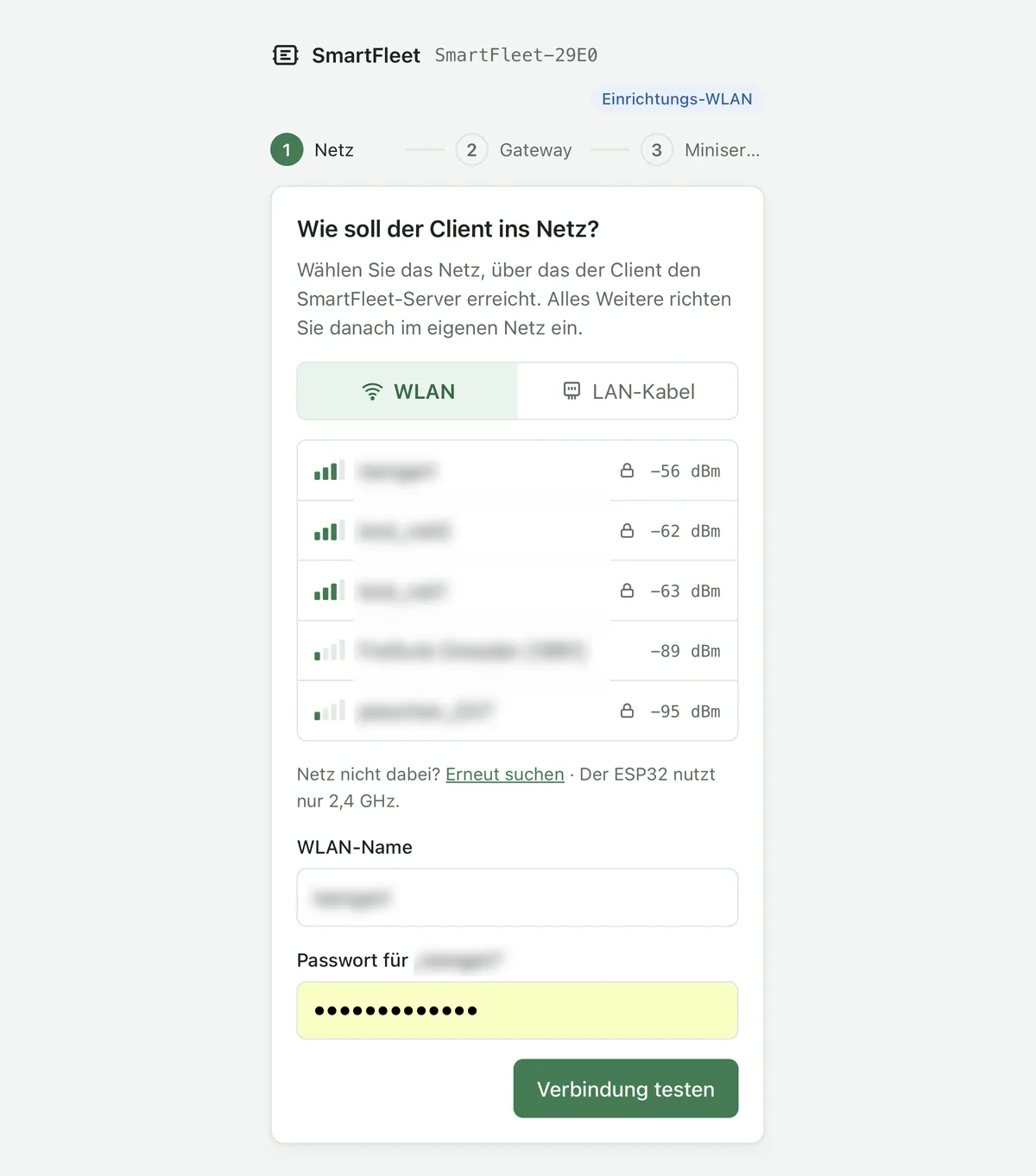
Stage 2: set up inside the customer’s network
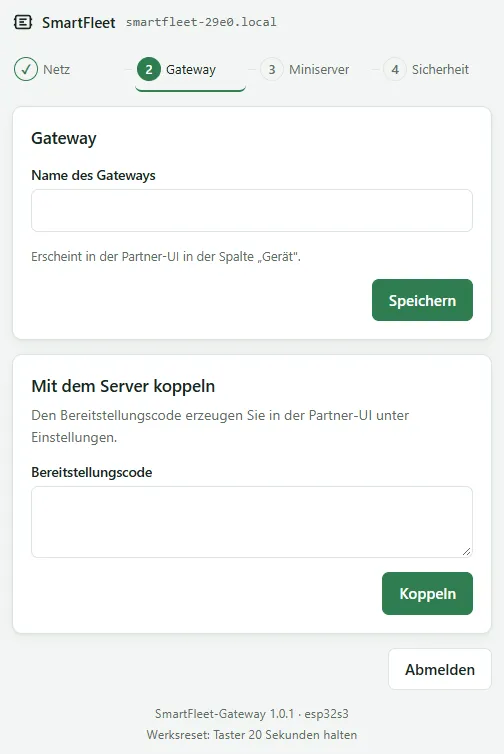
Section titled “Stage 2: set up inside the customer’s network”Connect your device to the customer’s network again and open the address you noted. The page guides you through three steps: Network, Gateway and Miniservers. After signing in, the step Security is added (see Security).
-
Set the admin password. It protects the setup page, at least 10 characters. Without this password nobody can change settings any more, not even through the setup Wi-Fi.
-
Name and pair the gateway. In the Gateway step you give the gateway a name and paste the provisioning code from your partner UI. How to create the code is described under Pairing a site. Click Pair. The gateway checks your server’s certificate and registers; this takes a few seconds.
-
Add the Miniservers. In the Miniservers step you add up to eight Miniservers from the customer’s network, with address, user and password. HTTPS is preselected. The credentials stay on the gateway, and the page never shows the password again.
From now on the site reports to your server every minute. The Miniserver values arrive at the configured collection interval, every five minutes by default.
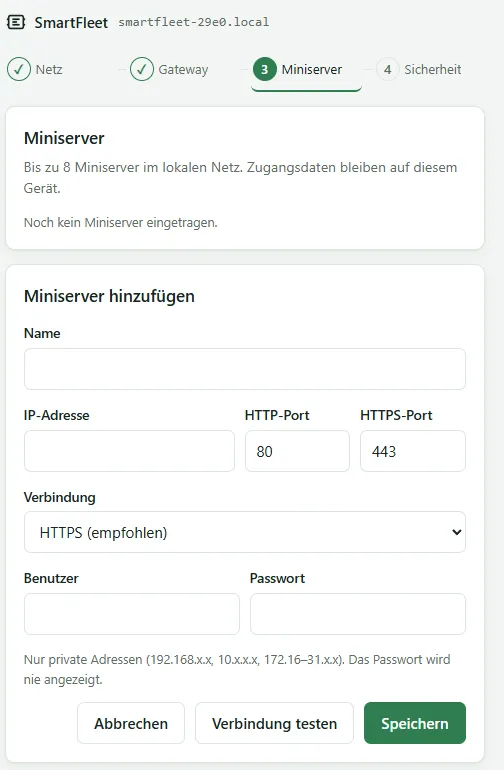
After that, the page shows the configuration menu after signing in, see Interface.
The button
Section titled “The button”Next to its USB-C socket the XIAO has two small buttons, labelled B and R on the board. The right one is B (BOOT). R (RESET) only restarts the gateway and does nothing else. In the enclosure, both can only be reached with the lower terminal cover removed.
| Button B | Effect |
|---|---|
| Press for 3 seconds and release | The setup Wi-Fi opens for 15 minutes, for example to change the network of a gateway that can no longer be reached in the network. Only someone who knows the admin password can change it; it is entered there together with the network settings. Signing in over the setup Wi-Fi is not possible; all other settings are only available in your own network. |
| Hold for 20 seconds | Factory reset: network, admin password, pairing and Miniservers are deleted. Setup then starts again with stage 1. |