Alarm rules
Alarm rules watch a site’s system status, connection and system values. When a condition is met, SmartFleet sends an email to the rule’s recipients. You create the rules per site in the Alarm management tab.

Creating a rule
Section titled “Creating a rule”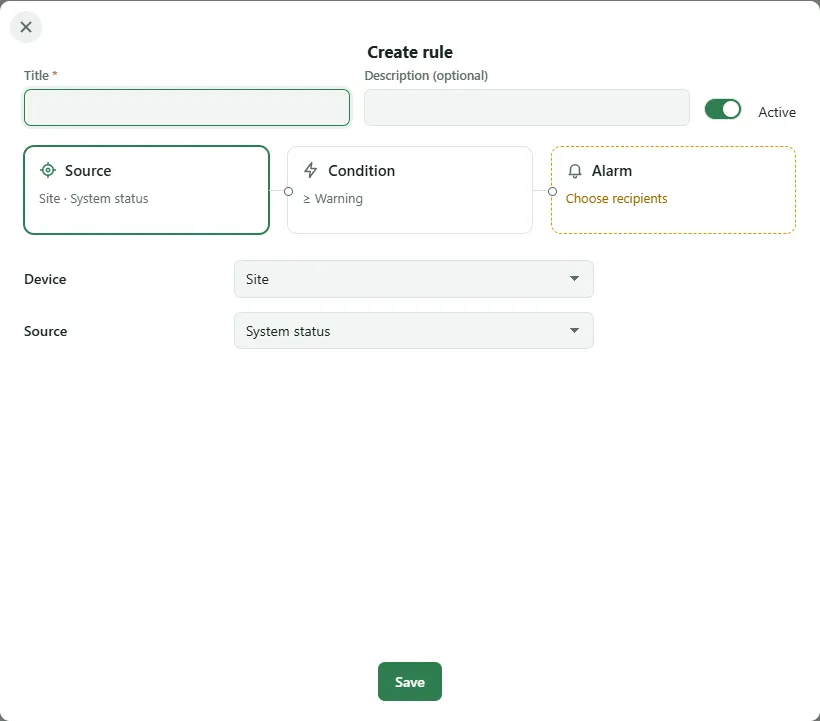
-
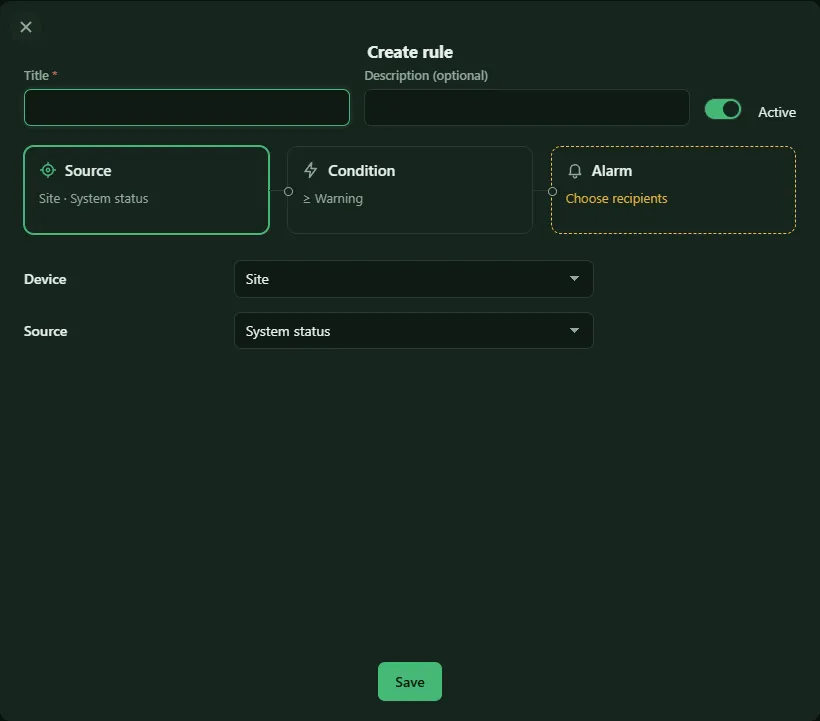
Site page → Alarm management tab → New rule. The popup has three areas: Source, Condition and Alarm.
-
Source. Enter a Title and choose Device and Source:
- Device: the site, a gateway, a particular Miniserver or All devices
- Source: System status (events in the System status tab), Connection (device reachable or disconnected) or a value – a key figure such as CPU load and temperature, or an activated system value
-
Condition. Under Trigger when you set comparison and threshold, for example “> greater than 70”. The popup shows the current value as a guide. With Condition must persist the rule only triggers once the condition has held uninterrupted for that long – this prevents emails on brief outliers.
-
Alarm. Choose the severity (Low, Medium, High, Critical) and the recipients. See below.
-
Save. The rule is active immediately; with the Active switch at the top of the popup it can also be created switched off.
Recipients
Section titled “Recipients”In the Additional recipient field you search for:
- a role – all users with this role at this site
- a user of this site
- an email address without a login, such as the customer or an on-call mailbox. Press Enter to accept a complete address.
How often emails are sent
Section titled “How often emails are sent”| Setting | Effect |
|---|---|
| Remind | as long as the alarm persists, again every 1, 6 or 24 hours – or never |
| Report recovery | an email Back to normalas soon as the condition no longer holds |
| Quiet period after notification | only without a recovery email: if the alarm recurs after a recovery, it stays silent for this long |
Several alarms from one run are bundled into one email per recipient. The subject names severity and type.
When an alarm ends
Section titled “When an alarm ends”- Values and connection recover by themselves as soon as the condition no longer holds.
- Events of a Miniserver recover when the Miniserver itself reports them as resolved.
- All other events stay triggered until you acknowledge or delete them in the system status.
If a value is missing, for instance because the gateway is currently unreachable, the alarm counts neither as triggered nor as recovered. So a connection outage doesn’t additionally bring you a flood of recovery emails.
The rule list
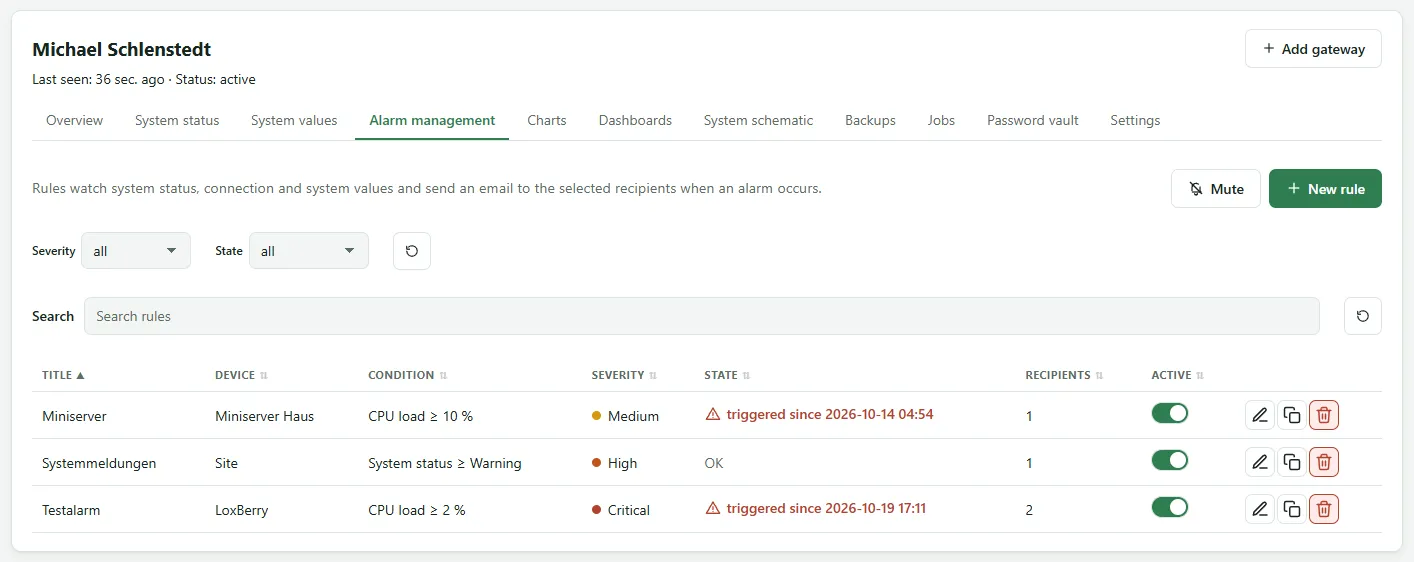
Section titled “The rule list”The table shows device, condition, severity, recipients and the State for each rule: OK, “checking since …” while a minimum duration is running, or “triggered since …”. The list can be filtered by severity and state. Each rule offers Edit, Duplicate and Delete; the switch in the Active column turns a rule off without deleting it.
Site defaults
Section titled “Site defaults”Under Site settings you set defaults for reminder and quiet time. They apply to every rule of this site that has no value of its own.
Checks that always run
Section titled “Checks that always run”Independently of your rules, the server checks every site for three things and writes an event to the system status when needed:
- Last Miniserver backup is older than … days.
- LoxBerry file system is at least … %% full.
- Site certificate expires in less than … days.
With a rule on the source System status you get an email for these as well.
Creating and changing rules is allowed from the role Administrator upwards. How many rules a site can have depends on the license; once the maximum is reached, the tab points this out.