Miniservers
Miniserver overview
Section titled “Miniserver overview”Miniservers in the header lists all Miniservers of all sites in one table: state, name, site, Serial number, Firmware and Project. This way you quickly find all Miniservers with a particular firmware, or a Miniserver by its serial number.
Gateway overview
Section titled “Gateway overview”Gateways lists all gateways of all sites – LoxBerrys with the plugin and SmartFleet Gateway devices – with state, name, site, type, serial number, version, the number of their Miniservers and their last report. The columns can be sorted, and above them you filter by state. Clicking anywhere in the row opens the gateway’s page, clicking the site opens the site page.
Device page
Section titled “Device page”Clicking anywhere in a Miniserver’s row opens its page, clicking the site opens the site page. At the top there are two buttons: Open in Loxone App and Open in Loxone Config, see below.
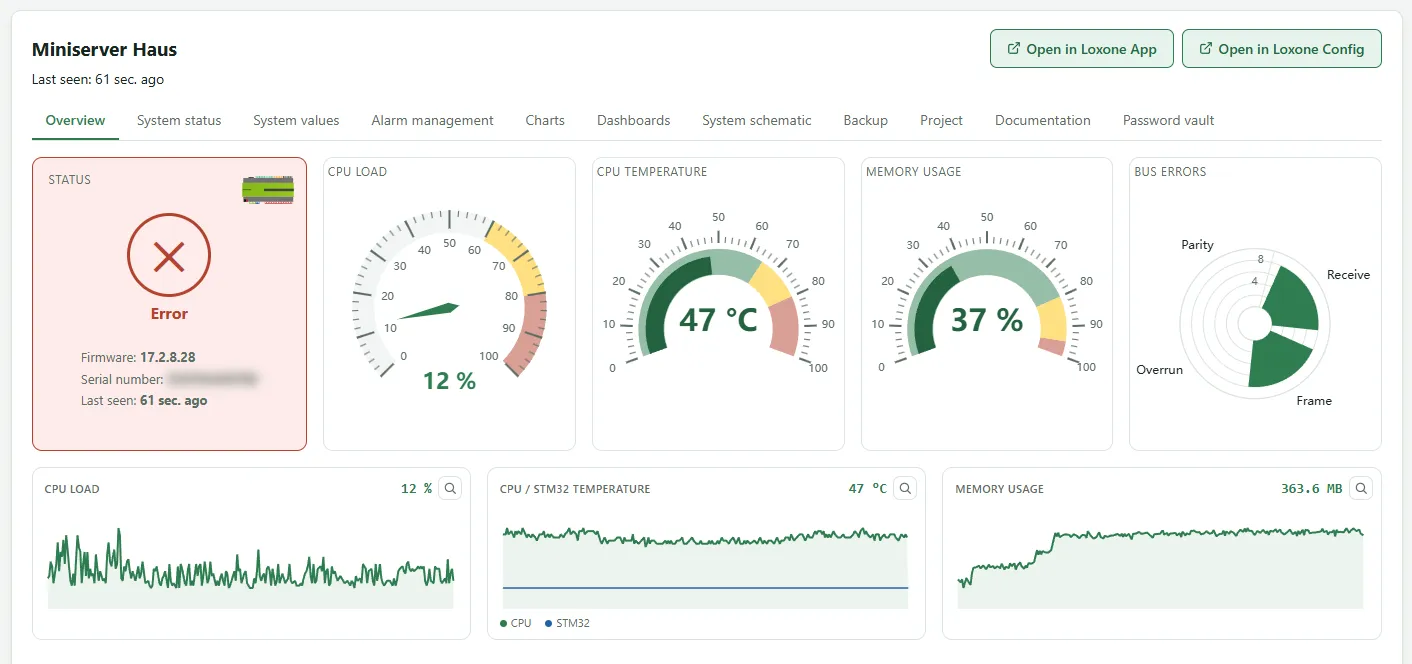
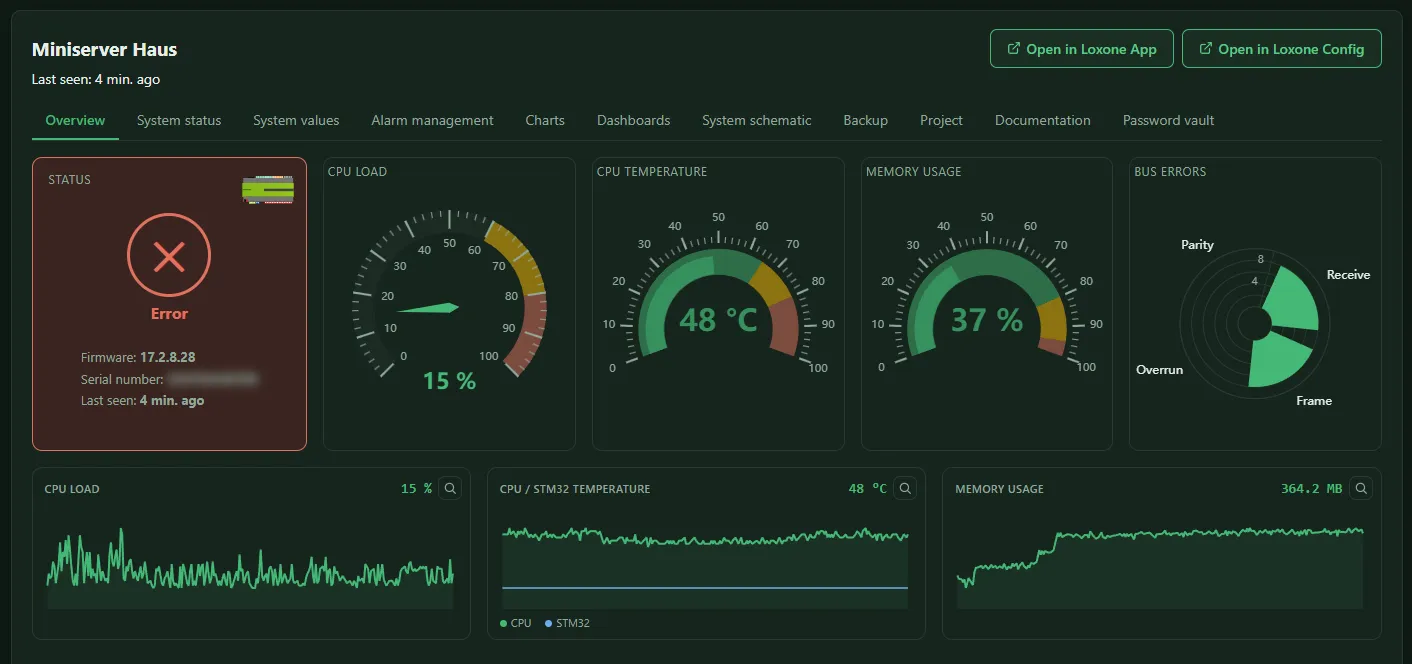
| Tab | Content |
|---|---|
| Overview | current values and history: CPU load, Memory usage, CPU temperature, Bus errors, System load |
| System status | events of this Miniserver and the Device status |
| Alarm management | alarm rules for this Miniserver |
| System values | selection of the block outputs that are recorded, see System values |
| Charts | charts of the recorded system values, see Charts |
| Backup | backups of this Miniserver |
| Project | the current program and your own project files, see Project files |
| Documentation | the system documentation from the project file |
| Dashboards, System schematic | dashboards and system schematics |
| Password vault | the site’s password vault |
Opening Loxone App and Loxone Config
Section titled “Opening Loxone App and Loxone Config”Open in Loxone App and Open in Loxone Config pass the Miniserver’s serial number to the Loxone App or to Loxone Config on your computer. The Loxone program establishes the connection to the Miniserver itself, not SmartFleet. The program therefore has to be installed.
From outside the customer network, App and Config only find the Miniserver via Loxone Remote Connect. So set up Remote Connect on every Miniserver you want to open remotely. Loxone describes how in its Remote Connect documentation.
Without Remote Connect the two buttons only work while you are on the same network as the Miniserver. You reach the gateway itself independently of this via remote maintenance.
New Loxone firmware
Section titled “New Loxone firmware”Once a day the server asks Loxone which version is current in the Release channel and compares it with the firmware of every Miniserver. If a Miniserver is older, a small symbol appears next to the Firmware, wherever the firmware is shown. Hovering over it shows the hint, a click opens the Loxone download page. Beta and test versions do not count.
| Colour | Meaning |
|---|---|
| blue | a new version is available, Remote Connect keeps working |
| yellow | from a set date Loxone requires a minimum version for Remote Connect that the Miniserver does not have yet; update before then |
| red | the date has passed, Remote Connect no longer works |
In the red case Open in Loxone App and Open in Loxone Config at the top of the device page turn red as well, with a hint below: from outside the customer network both only work again after the update.
The same three levels appear as info, warning and error in the system status and can therefore be sent by mail through an alarm rule. The event contains the link to download the new version and to Loxone’s known issues.
Reading the history
Section titled “Reading the history”The history charts in the Overview tab show either 24 hrs, 8 days or Hourly values.
- The mouse wheel zooms the time axis; the slider below selects the visible period.
- Zoom to selection (drag a rectangle): drag a rectangle in the chart to narrow both axes.
- Download as CSV and Save as image export the visible history.
- Open full screen shows a chart full screen.
How long the values are kept at which resolution is set under Site settings.
Device status
Section titled “Device status”The Device status lists all devices connected to the Miniserver, grouped by Tree, Air, Network and further groups – with serial number, version, status and, for wireless devices, the battery level. This shows you which Air devices are offline or will soon run out of battery.
The device tree is fetched again at fixed intervals. After pairing it can take until the first scheduled fetch before it appears.