Dashboards
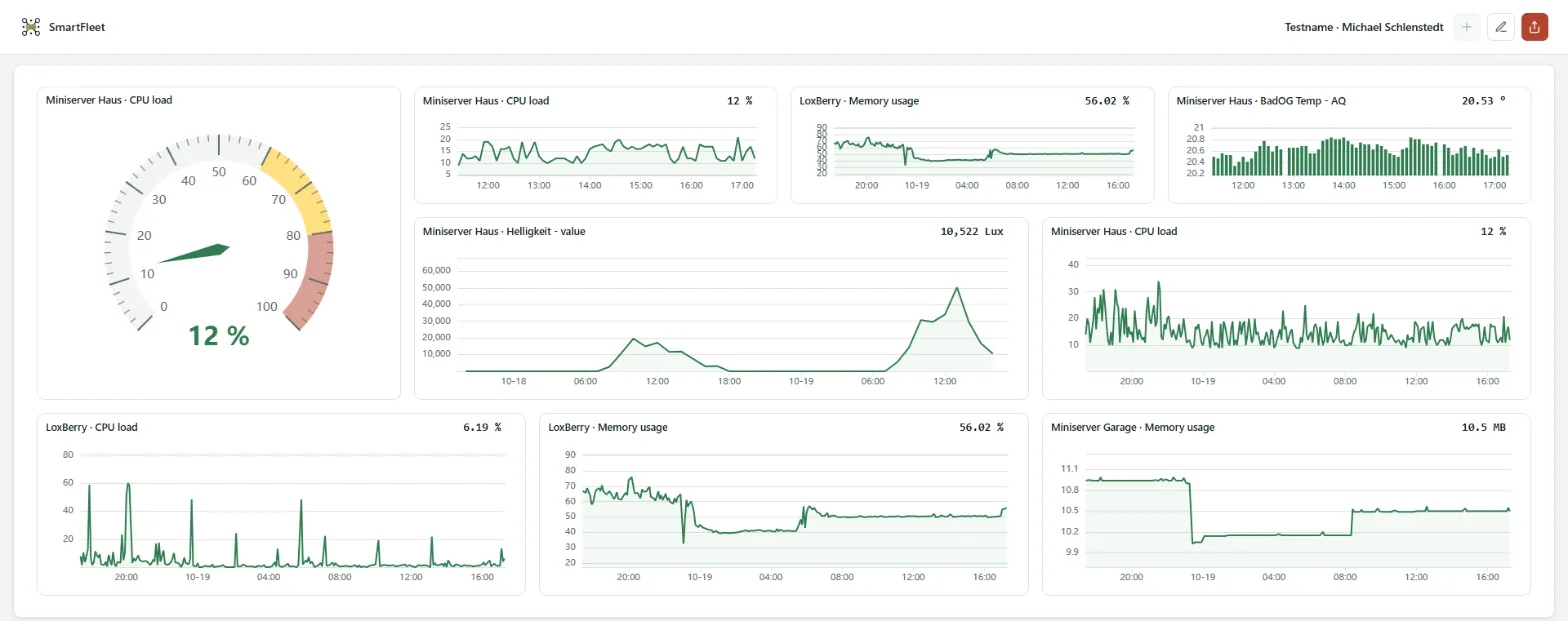
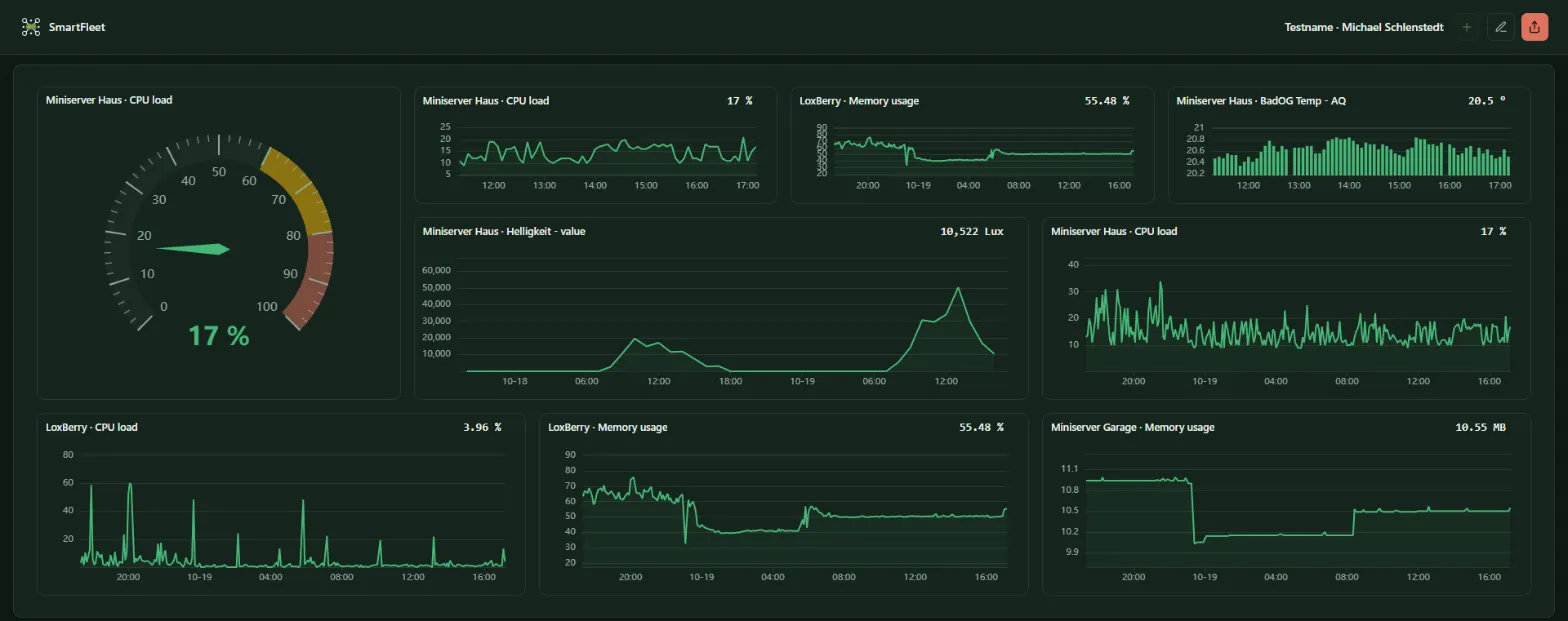
A dashboard is a freely arranged surface of tiles: charts of system values, histories of devices, current values as gauges and states of devices. An open dashboard refreshes itself every minute. Dashboards exist per site (Dashboards tab) and per Miniserver.
Creating a dashboard
Section titled “Creating a dashboard”-
Dashboards tab → New dashboard, enter a name, Create.
-
Open the dashboard and click Edit layout.
-
Add tile and choose the Type:
- System value – history of an activated system value
- Device metric – history of a device value such as CPU load or temperature
- Current device value – the current value as a gauge
- Device status – whether a device is reachable
-
Choose Device and Source, for histories also View and Zoom range.
-
Drag the tiles into place and to their size. Finish editing and save saves the layout.
Editing only works in a sufficiently wide window. Viewing works on any device, including a phone.
Managing
Section titled “Managing”The list of dashboards offers Rename and Delete. A dashboard can be passed on as a link via a share.
Creating and editing dashboards is allowed from the role Administrator upwards, viewing for every role. Above the table you see how many dashboards have been created at this site and how many your license allows. The whole site is counted, even if the table at a Miniserver only shows that Miniserver’s dashboards. Once the limit is reached, New dashboard is locked. The limits per tier are listed under License tiers.
- If a tile shows This source is no longer available., the system value was deactivated or the Miniserver deleted. Choose a different source or remove the tile.
- If a dashboard could not be refreshed several times in a row, it points this out. The values shown are then no longer current; reload the page.